
8 Apple Reminders Features Everyone Asks About (And How to Use Them)
The most common Apple Reminders questions — from recurring tasks to Smart Lists, Siri, and Column View.

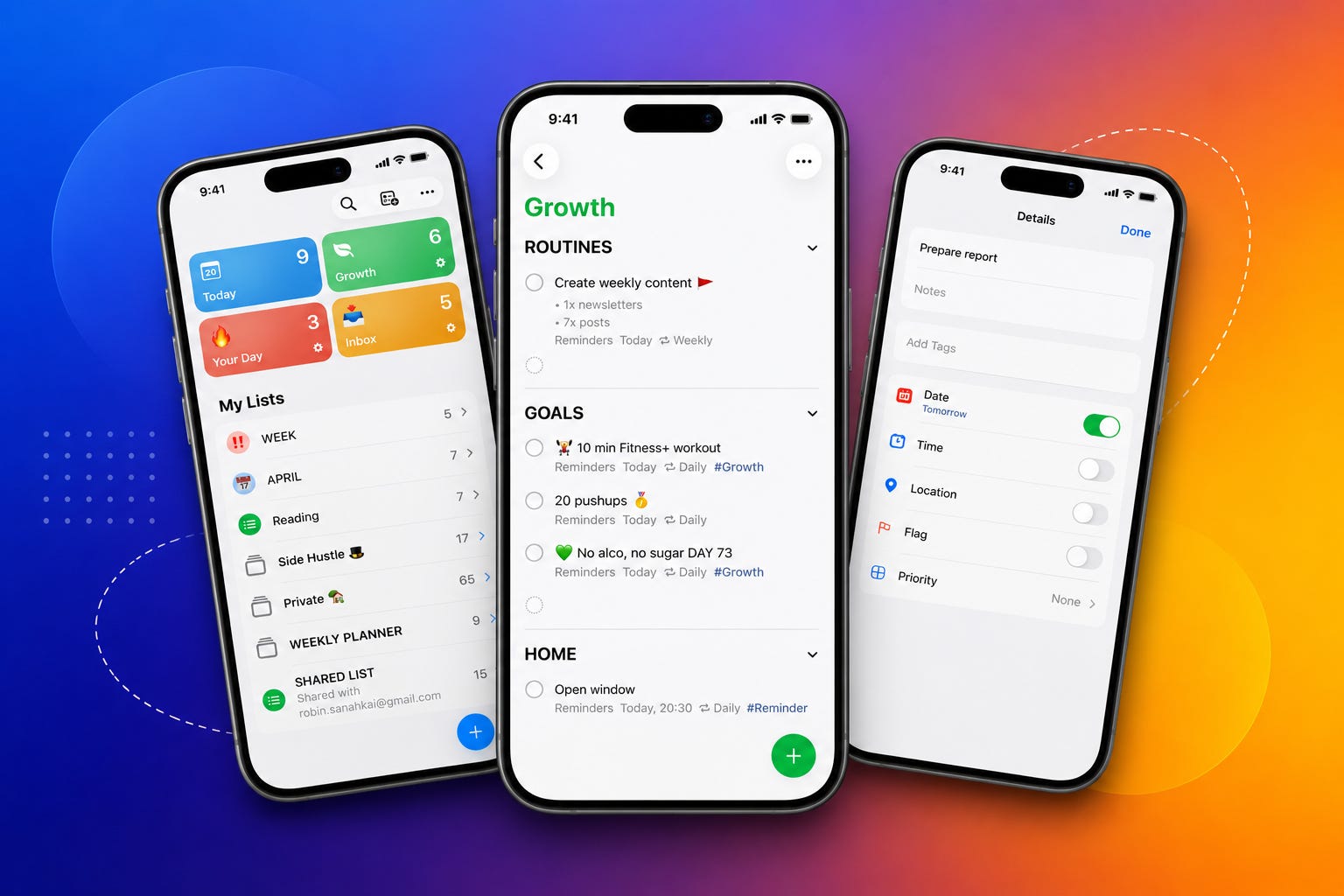
Apple Reminders can be a powerful app. Especially if you’re already deep in the Apple ecosystem. Your reminders sync across all devices through iCloud and are always with you, when you need them.
Personally I use mainly my iPhone to add new tasks to my Inbox. If you have iPhone 15 Pro/Max or any of the 16 and 17 models, Action Button is the best way to quickly add new entries to Apple Reminders (Settings -> Action Button -> Controls -> New Reminder).
When it’s time for action I prefer to work using my iPad or Mac mini. This is where I use Apple Reminders the most. I’ve built my own, custom setup that fits my needs and separate my family life, work and side hustle.
What I love the most about Apple Reminders is simplicity. However, with a few features it can be really powerful productivity app. But, still some parts of Reminders are not so obvious.
So I asked Claude to dig up the 10 most common questions people have. All these questions are coming from Apple Support forum and Reddit threads.
Here are the most common issues — and how to fix them.
1. How do I set up recurring reminders?
To set a repeat: open any reminder → tap the info icon → choose Repeat → select the frequency.
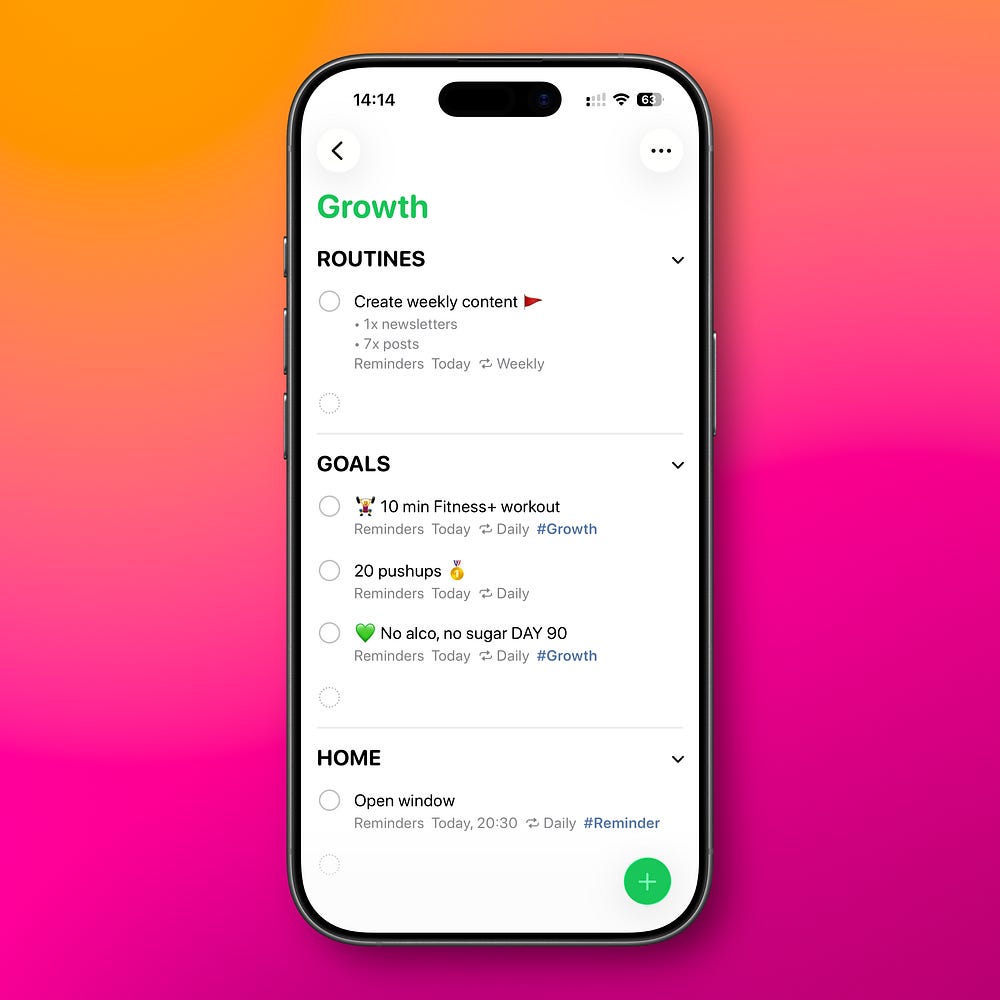
In your Apple Reminders setup, create a dedicated list called Reminderswhere you can keep all repeating tasks. Organize that list with sections based on frequency:
Daily
Weekly
Monthly
Annual.
You rarely need to look at it — tasks appear in Today automatically.
2. What are Smart Lists and how do I create one?
Smart Lists are basically automatic filters. You set the rules once, and the list updates itself. You can filter by tags, dates, priority, location, flags, and more. No extra organising needed. Reminders that match your rules appear automatically.
When you create a New List in Apple Reminders, choose List Type -> Smart List.
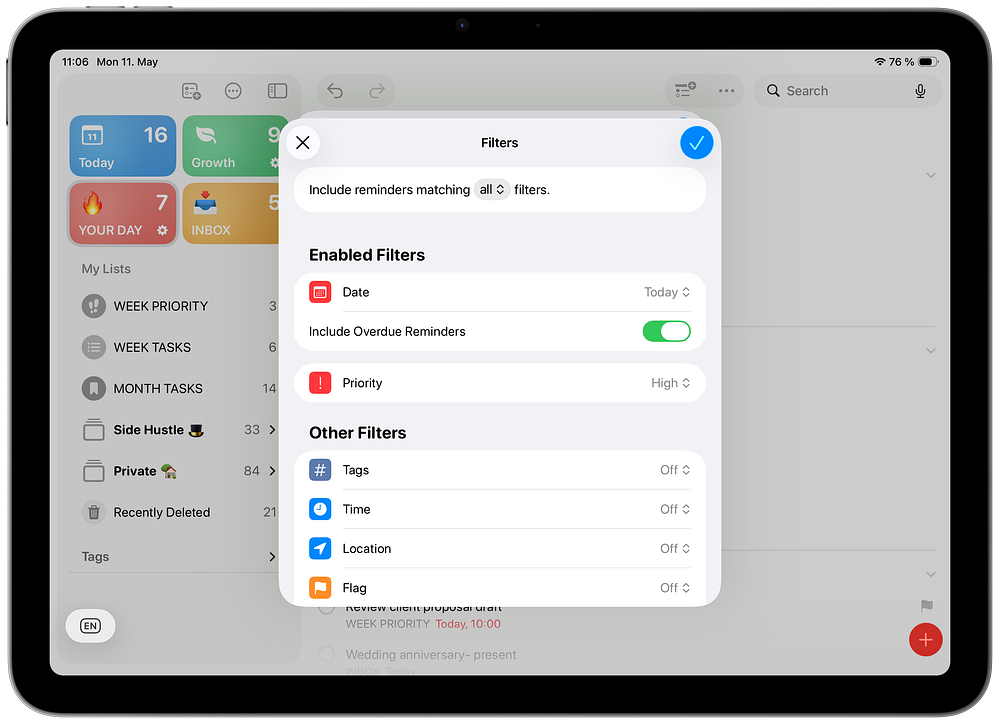
If you would like to know how to create a useful Smart List that actually you will use everyday, here is the story where I covered it.
3. How do I share a list with family?
To share an Apple Reminders list, all users need to be Apple users and have iCloud account. Everyone who joins the shared list can create and edit reminders from any device or computer set up with iCloud.
If you are the organizer of a Family Sharing group, you can create a shared “Family Groceries” list in Reminders to keep everyone aligned for shopping. To check if you are using the Family feature and who is included, go to Settings -> tap your Apple Account -> Family.
How to share any Apple Reminders list:
Go to the Reminders app
Select a reminder list, then click the Share icon
If you do not want to allow people to add others to the list, change that setting before sending the invite (you can change it later too anytime):
4. Choose how you would like to share your list.
4. Can I use Apple Reminders instead of Todoist/Notion?
People often asks me this questions on Threads. Users switching FROM Todoist TO Reminders say: “It’s free, it syncs perfectly, and I don’t need more features”.
Todoist has the same basic features like notifications, lists, tags, shared space. But you need to buy a subscription to get what you already have for free in Apple Reminders.
So yes, you can use Apple Reminders instead of Todoist and have all the features you need. For free.
If you want to read more on Todoist vs Reminders, here is my comparison.
5. How do I set a location-based reminder?
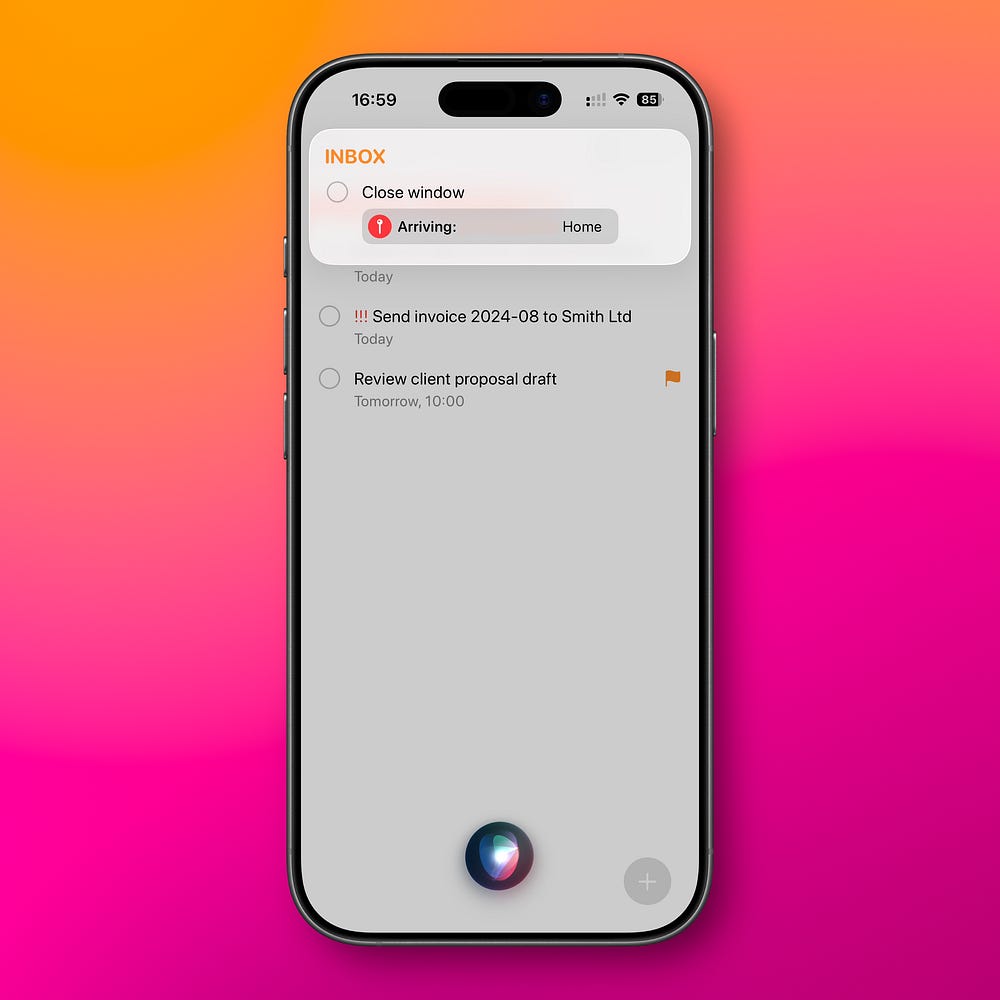
With location-based reminders, instead of setting a time, you set a place. The reminder fires when you arrive at — or leave — a specific location.
How to set it up: Open a reminder → tap the location field → search for a place or choose Current Location → choose “When I Arrive” or “When I Leave.”
You can also use Siri. Just say: “Remind me to close window when I get to home”.
6. How to use tags in Apple Reminders?
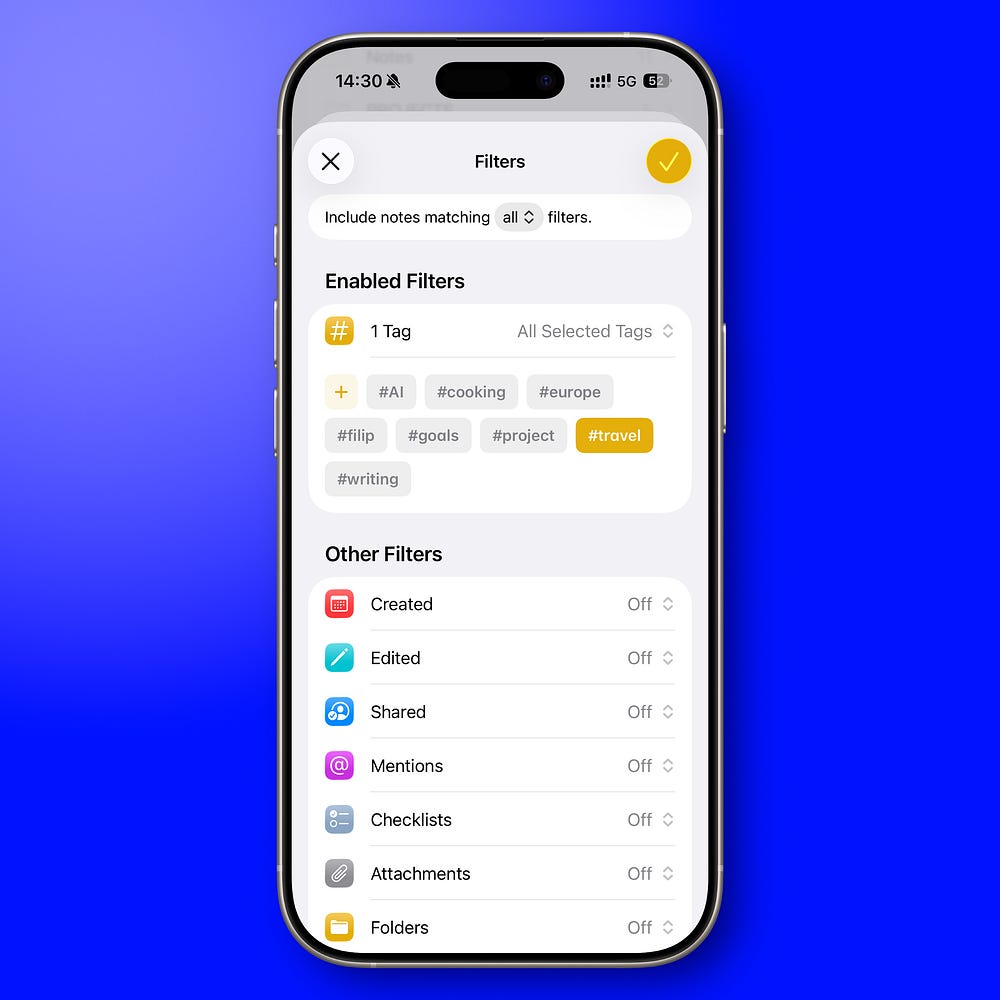
Tags are the easiest way to keep things tidy without multiplying your list count. Instead of creating a separate lists, you tag tasks and filter by tag in Smart Lists.
I don’t use many tags. Four to six is plenty. More than that and you spend more time tagging than working.
Then in while creating a Smart List simply use filter Tags -> Any Selected Tags -> #your tag.
7. “How do I use Siri with Reminders?”
Siri is extremely useful when paired with Apple’s built-in apps. The intelligence isn’t in the conversation. It’s in the system.
In situations where typing isn’t practical — driving, walking, cooking — Siri becomes surprisingly reliable. This isn’t about long AI conversations. It’s about fast capture.
Why Siri works better with Reminders
Siri struggles with context-heavy dialogue. But reminders are structured. Reminder (task) usually contains action, list, date, even location.
That’s predictable. And Siri handles predictable input well. Instead of asking Siri complex questions, I give it short, structured commands.
You don’t need to use long commands like: “Hey Siri, add olive oil to my groceries list.” That works. But it’s not necessary. If you already have structured lists inside Apple Reminders — like Work or Groceries — you can shorten your commands.
Just say:
“Prepare invoice in Work”
“Olive oil in Groceries”.
Here is the full story on how I use Siri with Apple Reminders everyday.
8. “How to use column view / kanban in Reminders?”
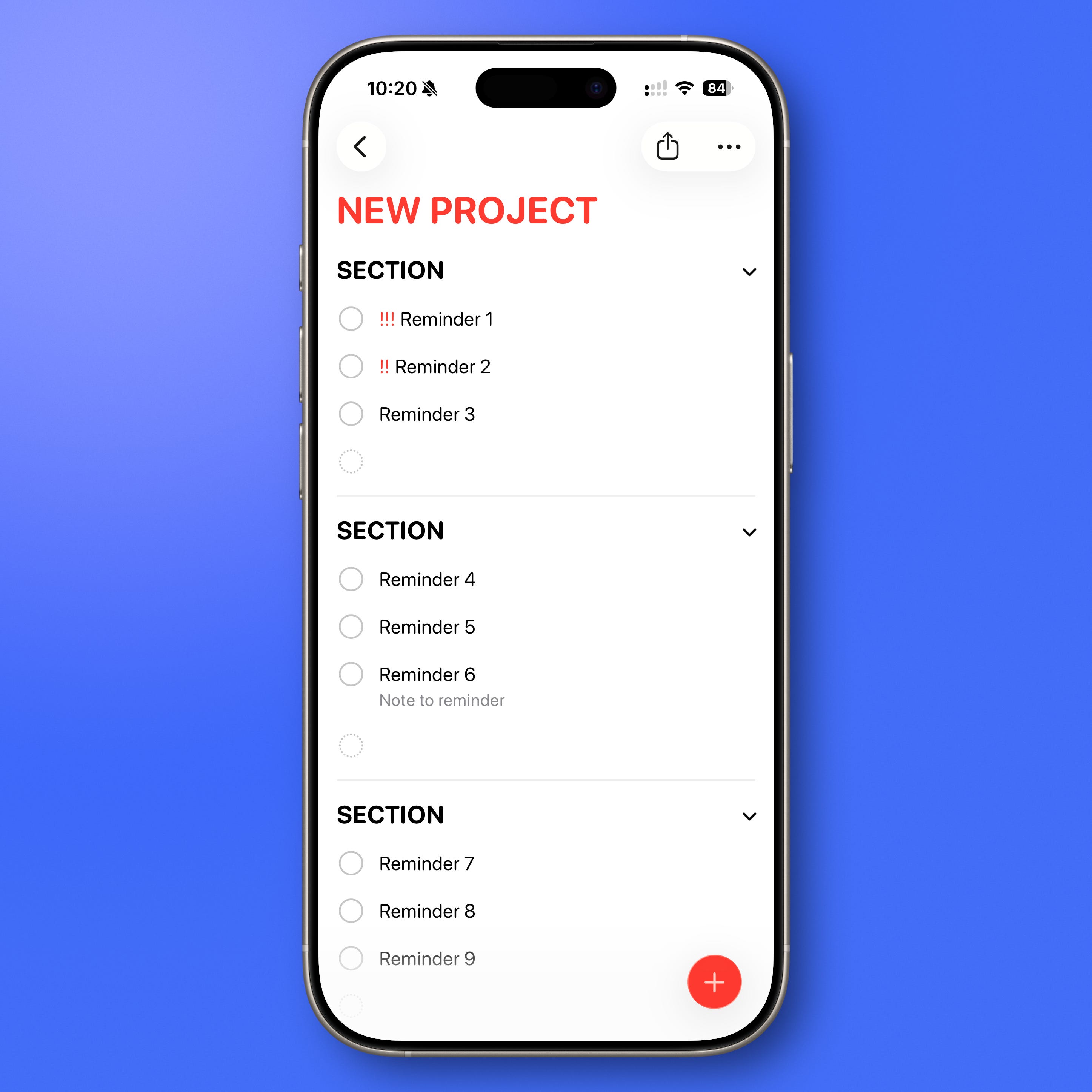
Column View changes how you see your tasks. Instead of one long vertical list, you can organize reminders into visual sections — similar to a lightweight project board.
This works because you can drag tasks between sections. That simple action makes planning clearer and more intentional.
How to Turn On Column View in Apple Reminders
First, choose the list where you want to use Column View.
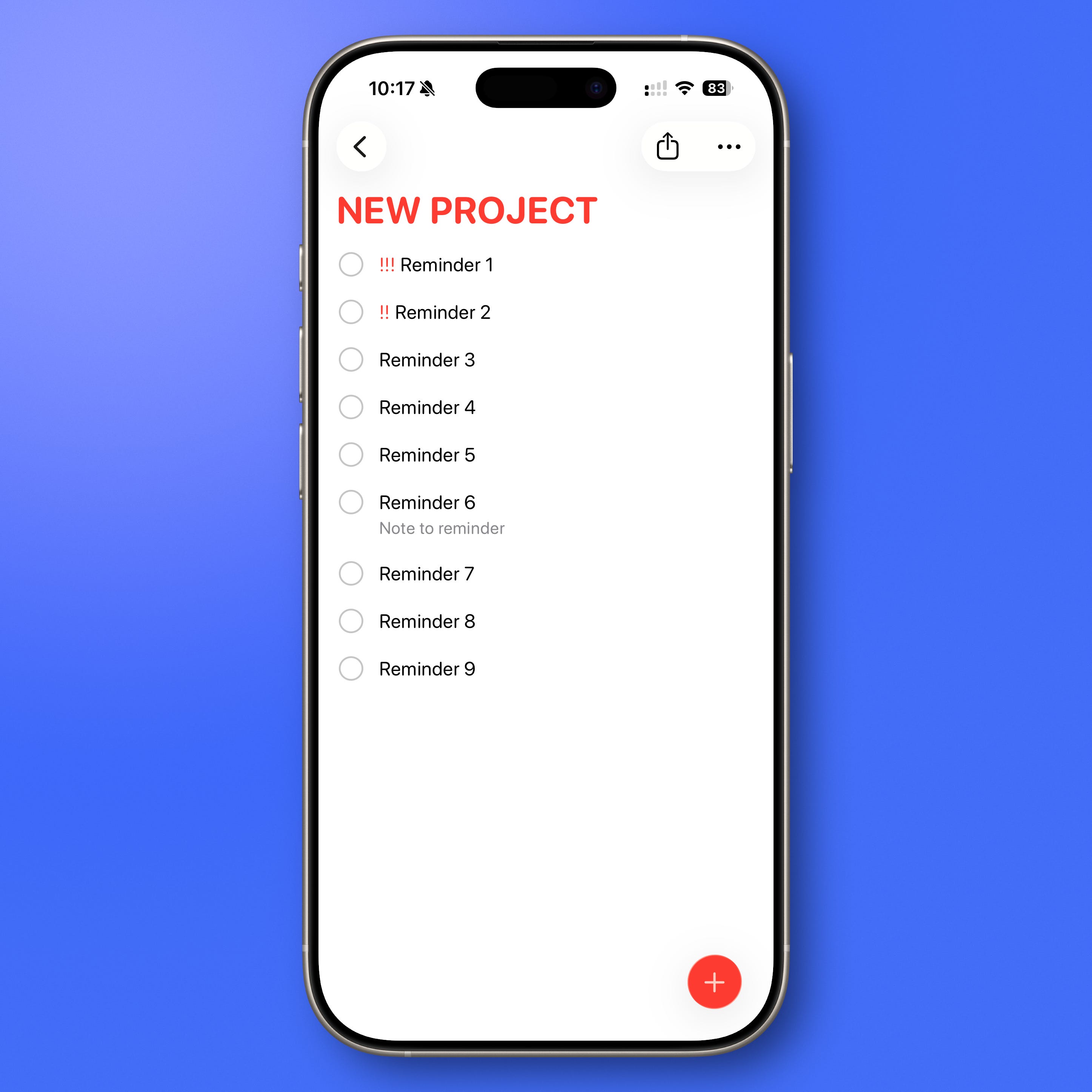
Step 1: Create Sections
On iPhone:
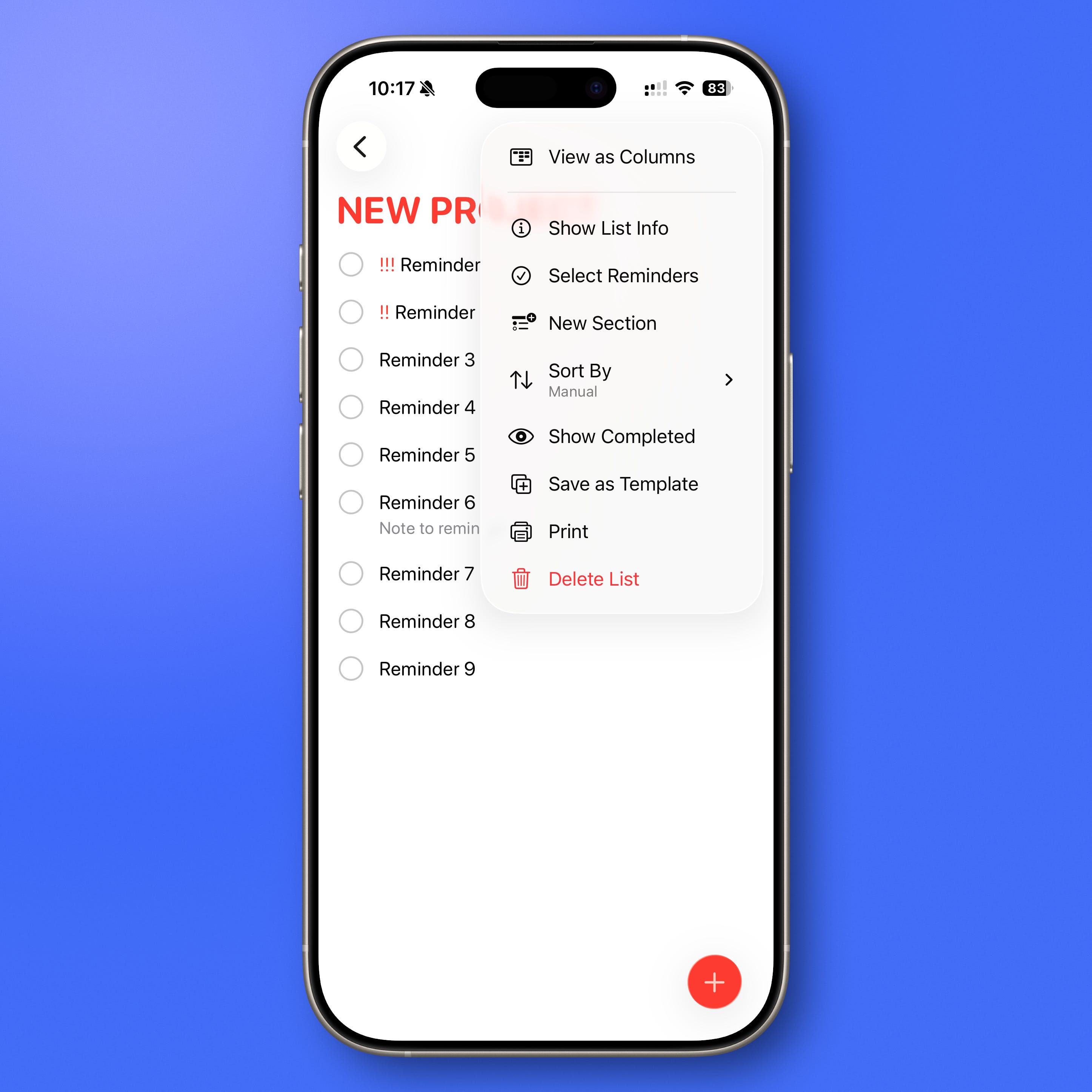
Tap the three dots in the top right corner
Tap New Section
Create as many sections as you need
On macOS or iPad:
Open your list
Click Add Section in the upper right corner
Step 2: Switch to Column View
On iPhone or iPad:
Tap the three dots again
Select View as Columns
On macOS:
Click View in the menu bar
Select as Columns
Now your sections appear side by side.
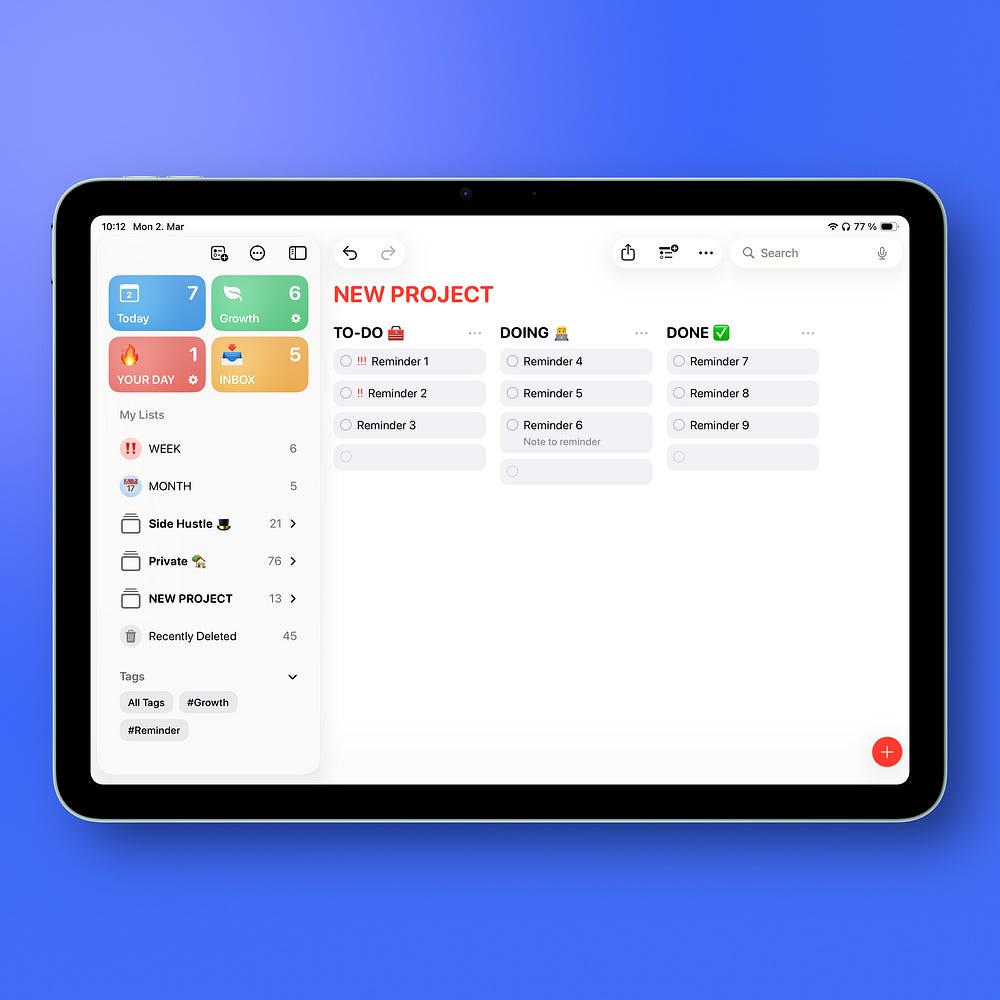
For a clearer and more comfortable view, I prefer using Columns on iPad or Mac, where the larger screen makes it easier.
Thank for reading!
-Robin
P.S. If you want the full setup — Apple Notes, Reminders and a simple weekly workflow — it’s all in one place. 61 pages, no extra apps needed. The Simple Apple System →
Footnote: All screenshots made on my iPhone 16 Pro and iPad Air, edited with Shareshot app. Text written fully by author (human), edited with Grammarly to correct any spelling or grammar mistakes.
To be honest, at some point of jumping from MS Todo to Todoist and even buying the pro sub, I thought about creating my own to-do list application, y'know, with blackjack and hookers!
Just tags
No lists or projects => all lists are smart lists
And tree-querying :D
But then I don't have that much time, and Apple Reminders still feels tempting. Maybe once I buy that iPhone.