
Use Links in Apple Notes to Build a Better System
How I connect notes, tasks, and resources to make Apple Notes easier to navigate

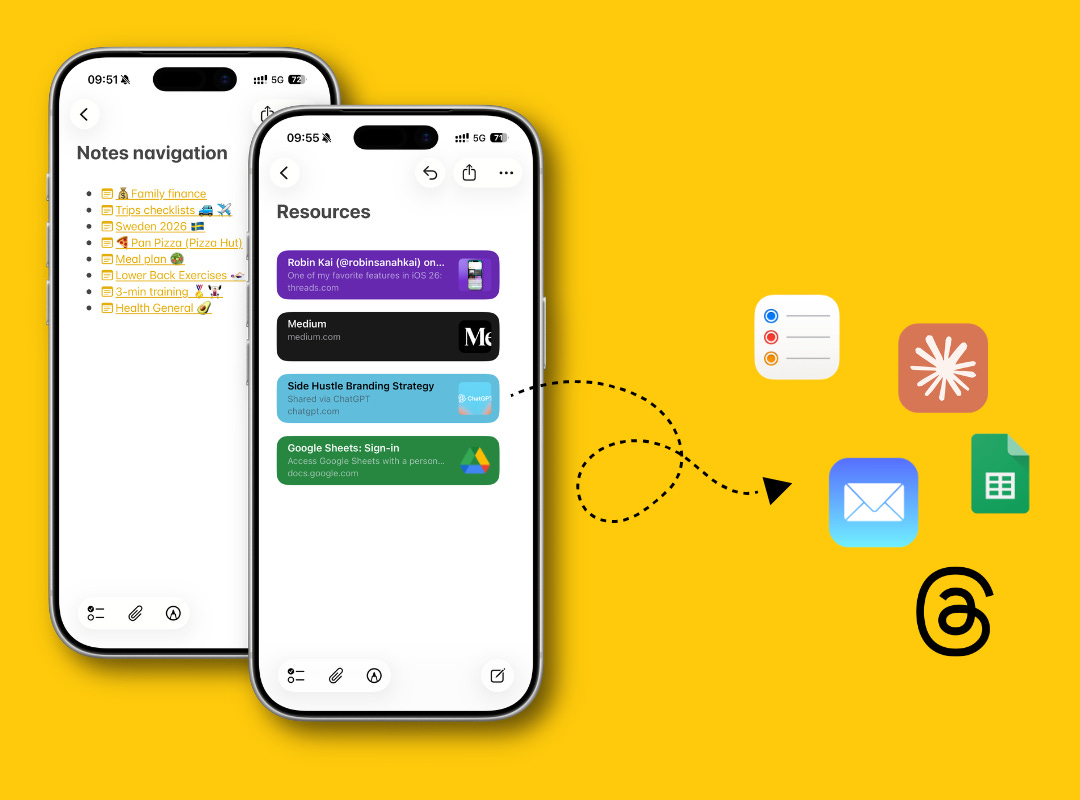
Most people start using Apple Notes the same way: folders first, then maybe tags and Smart Folders later. That works. But it also has limits.
At some point, organizing stops being the problem. Navigation becomes the problem.
This is where links in Apple Notes change everything.
Apple Notes has a simple feature that lets you connect notes, tasks, and even outside resources. Once you start using it, your notes stop feeling like a list and start working like a system.
If you already use tags and Smart Folders in Apple Notes, this makes the system even better.
Here are three simple ways I use links inside Apple Notes.
How to Connect Apple Notes and Reminders
This is the most useful setup I rely on daily. I separate thinking from doing.
Thinking lives in Apple Notes
Doing lives in Apple Reminders
Instead of mixing both, I link them.
When I’m working on a project, the full context sits in a note. But the task itself stays simple.
Something like “Work on this project for 1 hour.”
Here’s how I connect them:
Open your note
Highlight text
Right-click and tap the share button
Send it to Reminders
It creates a task with a direct link back to that note
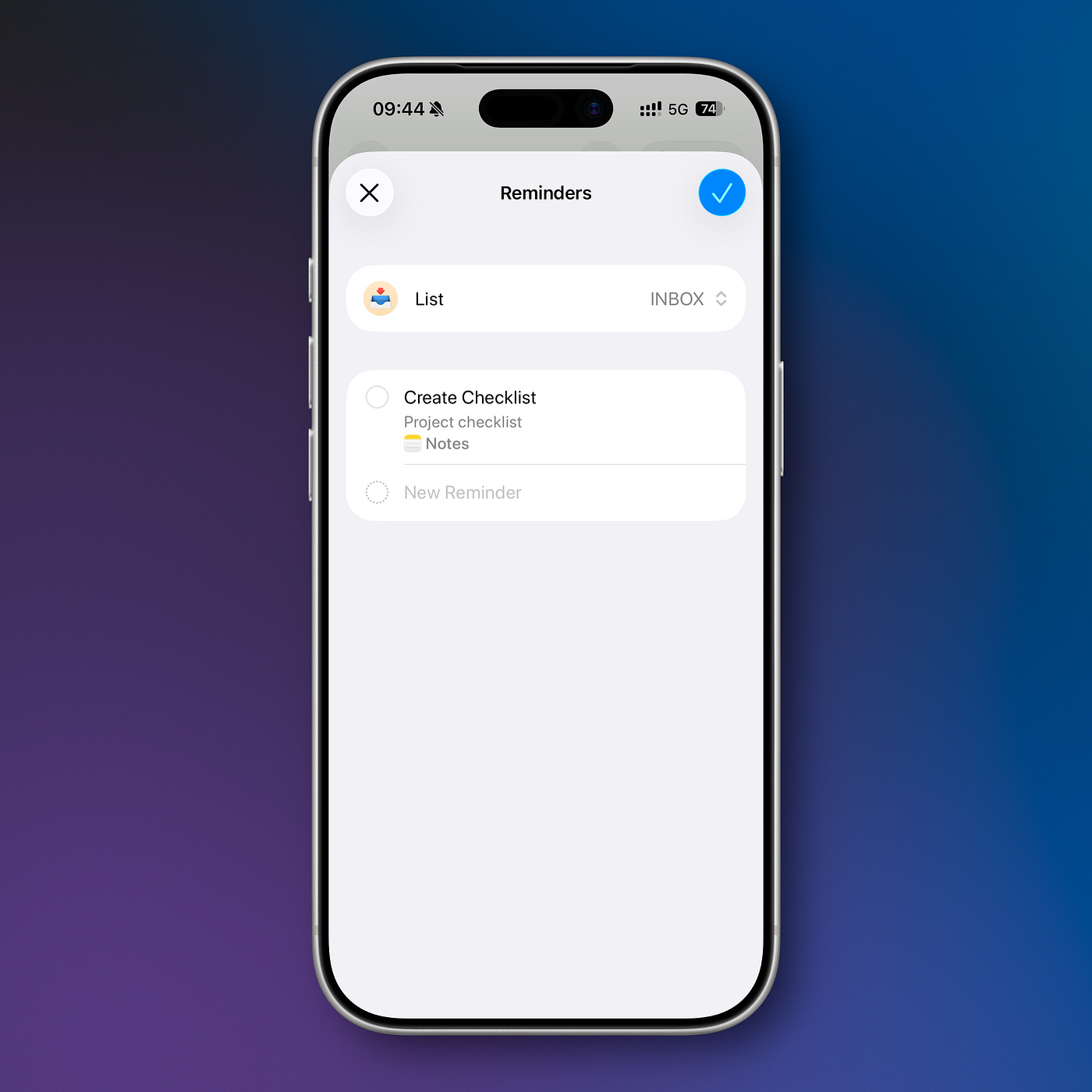
Highlight any text in the note -> right click -> share -> Apple Reminders
Now the Reminder stays lightweight. But when I tap it, I jump straight into the full context.
This is the same logic I use in my Apple Notes and Reminders project workflow.
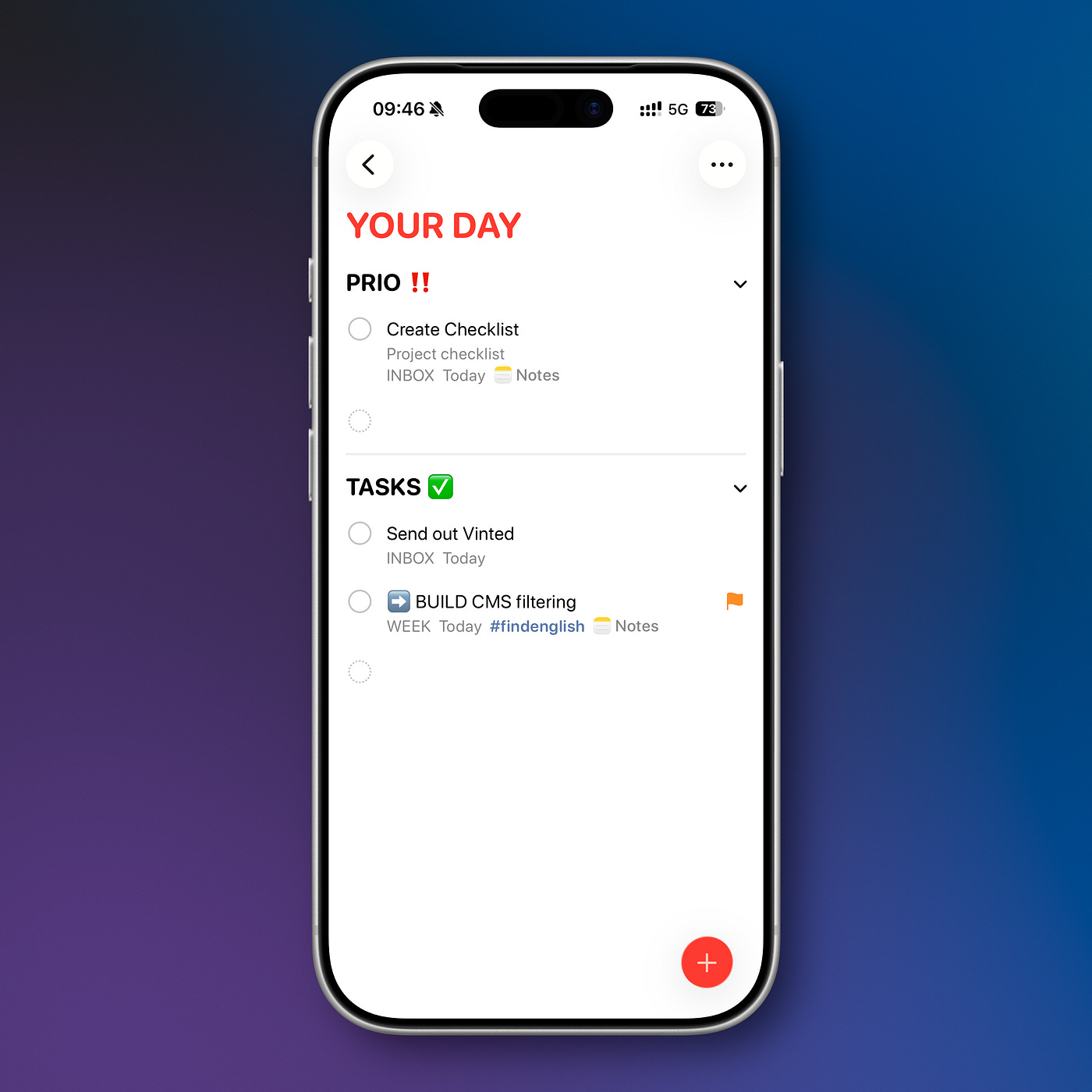
I always use Apple Notes links inside Reminders for quick access to the context.
Why this works:
Reminders stay clean and actionable
Notes hold all the detail
No duplication
This breaks if you try to put everything into Reminders. It’s not built for that. That’s also why I keep these apps in separate roles instead of blending everything together.
How to Link Notes to Each Other in Apple Notes
This is the feature most people miss.
