
How to design your custom Today view in Apple Reminders
A simple Reminders setup that shows you exactly what to do — and in what order.

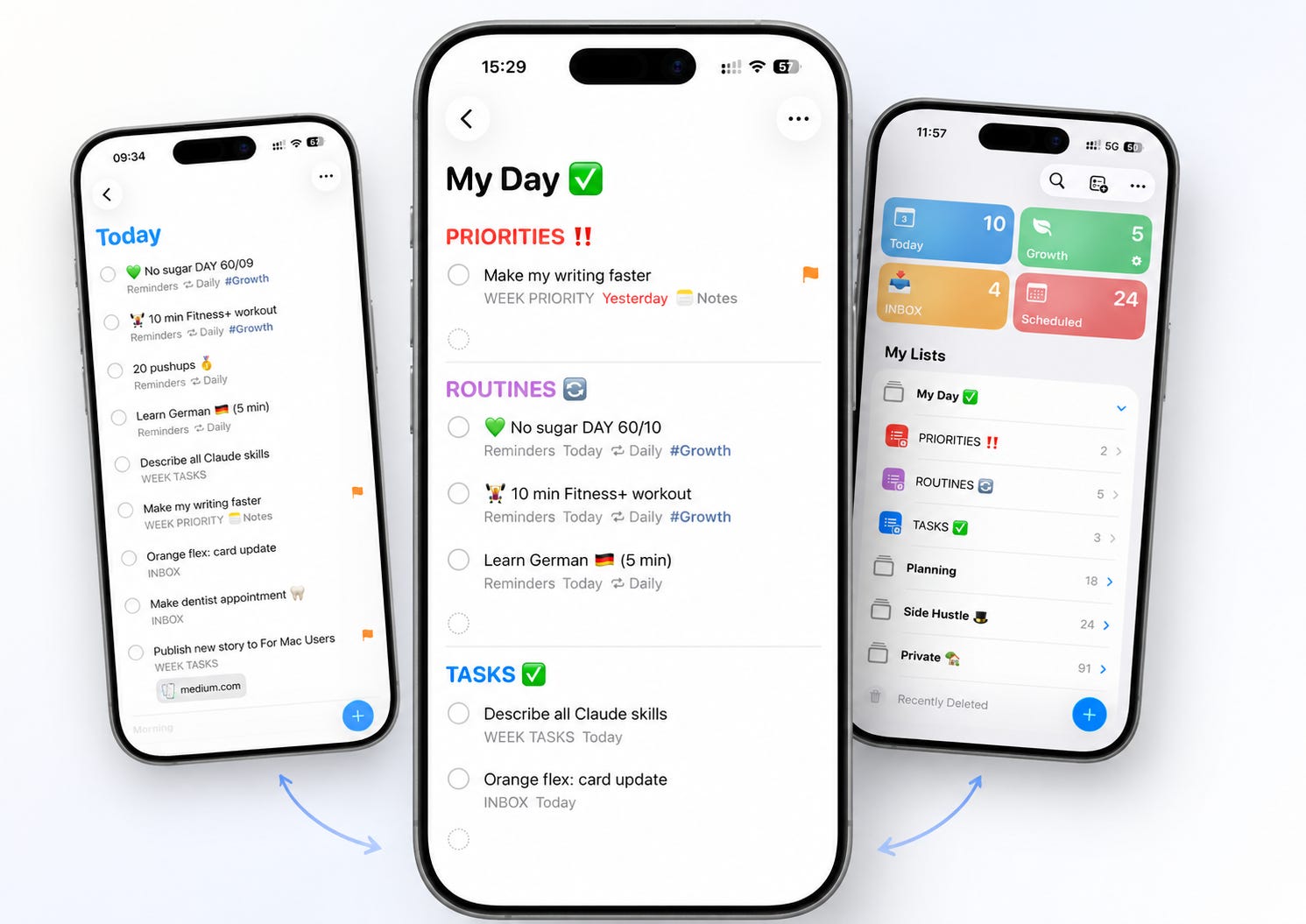
Apple Reminders is my go-to app I open every morning. Inside I keep everything I need to do: my business tasks, family plans, routines and personal to-dos. It’s like my digital personal assistant — free and always with me when I need it on my iPhone or iPad.
But there is one thing in Apple Reminders I don’t actually like. The default Today list. Apple’s Today view shows everything due today, no matter what’s important or what is the routine or standard reminder.
So I built my own Today view using three custom Smart Lists that separate priority, routine and everything else.
The problem with Apple’s default Today view
When everything is equally urgent, nothing is important. And that’s the main problem with Reminders’ Today list.
It doesn’t differentiate priorities from routines and low-stakes tasks.
It shows everything due today, including overdue — and that’s correct, but it becomes chaos when the list is long.
My typical day looks like that:
1–2 priorities
3–5 other tasks
4–6 routines
Why I stopped using it and built my own
Whenever I open the Today view and see 10+ tasks list without any structure, I feel overwhelmed. No structure or priorities, just a long list for everything.
But the good news is that you don’t need to rely on Apple’s default Today view.
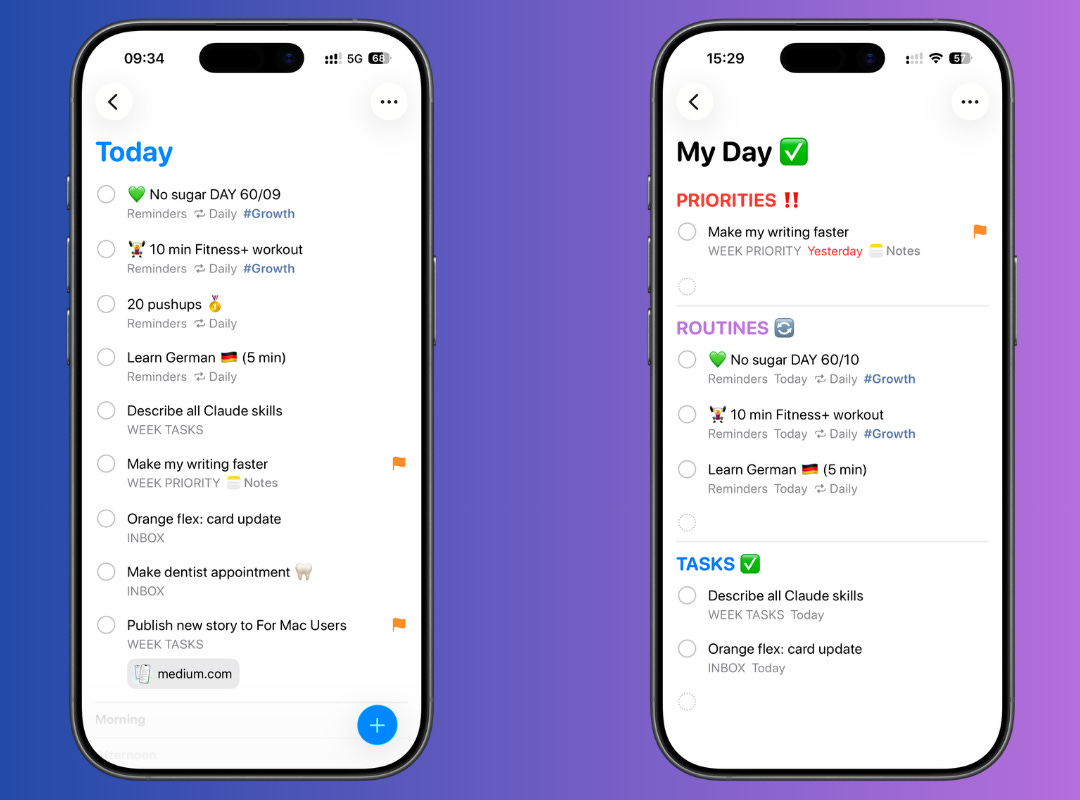
You can build a better one using a custom Smart List and clear rules. It’s simple and designed on our own terms that actually organize your everyday tasks.
Now I will show you how to build your own Today view.
The 3-list setup
With just three custom lists I created a my own focused-based view.
Priorities: main focus each day, 1–2 priorities a day are enough.
Routines: habits, small steps I repeat every day that make me grow in the long run
Tasks: Any of your tasks for today that are not priority
These three Smart Lists make a simple system that replaces the default Today view.
To configure it, it takes just 5 minutes, so I encourage you to start right away as you read this guide.
List 1: Priorities (flagged tasks due today)
Name: Priorities
List Type: Smart List
Filters: Flag -> Flagged, Date -> Today (Include past due)
Customization (if you like to use mine): Color: red, Icon: red double exclamation mark.
How to use it:
Simply flag your tasks (tap info → flag, or swipe left) and then set a date. They will automatically show in your Priorities view.


I often link my reminders to Apple Notes to get more context about the tasks. Usually when I work on projects. Then in Apple Reminders I keep an action (what), and in Apple Notes instructions (how). I show how to link Notes in Reminders here.
List 2: Routines
Name: Routines
List Type: Smart List
Filters: Lists -> Include: Reminders, Date -> Today (Include past due)
Customization: Color: purple, Icon: repeat symbol.
How to use it:
I keep all my routine tasks in a dedicated list called “Reminders” inside my folders. That helps me organize them better and gives me a good overview of my daily habits and recurring tasks.
You can also use a tag like routine to mark your tasks as a recurring routine. Then in Smart Lists simply use filter Tags -> Any Selected Tags -> #routine.


List 3: Low priority tasks (everything else due today)
Name: Tasks
List Type: Smart List
Filters: Flag -> Not Flagged, Lists -> Exclude: Reminders, Date -> Today (Include past due)
Customization: Color: blue, Icon: tick symbol.
How it works:
Any of your tasks for today that are not flagged and are not in Reminders list will land in this list view. It’s a “nice to do” kind of task. It works because it prevents low-priority tasks from stealing attention from your priorities.


How to set this up in one view
Now, one of my favourite parts of this setup. By combining all your Smart Lists into one simple view, you can actually make it as your custom Today view.
All you have to do is move all these three lists into one folder (In Reminders they are officially called Groups).
I like this way to organize all my lists that act as folder-like containers that let you bundle your lists together by theme (in my case it is mainly Work and Private to separate tasks from each other).
Here is how to do it
Press and hold a list until it pops out and you can move it.
Drag this list directly on top of another list you want to group it with.
Release the list, and a pop-up will ask you to name the new Group. Give it a name, something like “My Day”.
Tap Create.


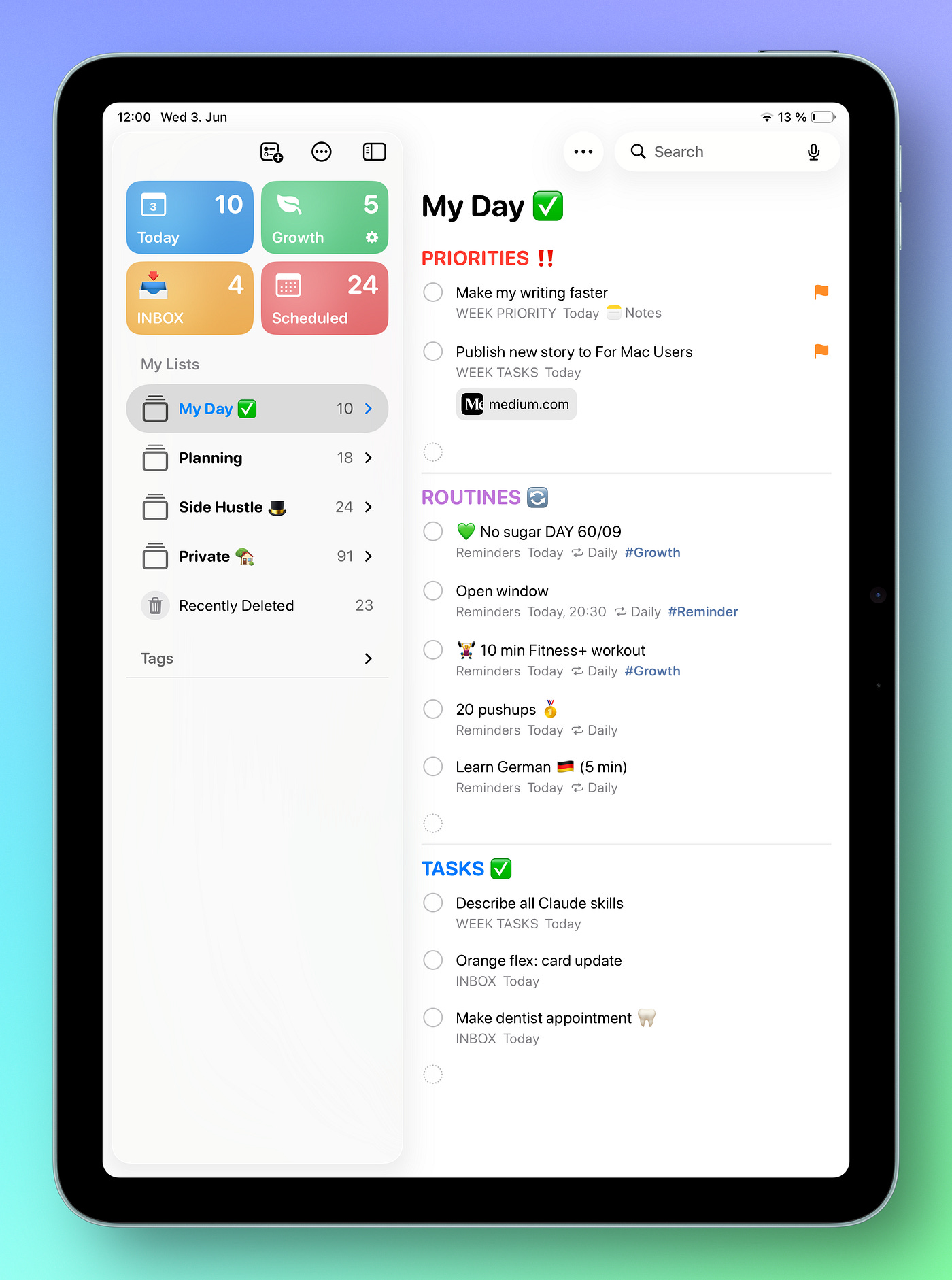
Move all three lists into this Group. Now when you tap on the folder you will have one dedicated view that combines your today’s priorities, routines and all other tasks.
This is basically your new custom Today view:
How I work with this setup
An important part of it is the proper planning. Every evening I go through the list where I keep all my tasks. Then I select which one I would like to do the next day. I set the date as tomorrow and flag my priorities (usually 1–2 tasks).
Then everything is ready the next morning. I open Apple Reminders on my iPad, tap the My Day group, and immediately see all my tasks grouped into three categories — priorities, routines and everything else.
In this story you can read for what other things I use Apple Reminders.
That setup helps me to better focus on what I have to do each day. And then every morning I start with my priority task.
I don’t open a default overwhelming Today list anymore.
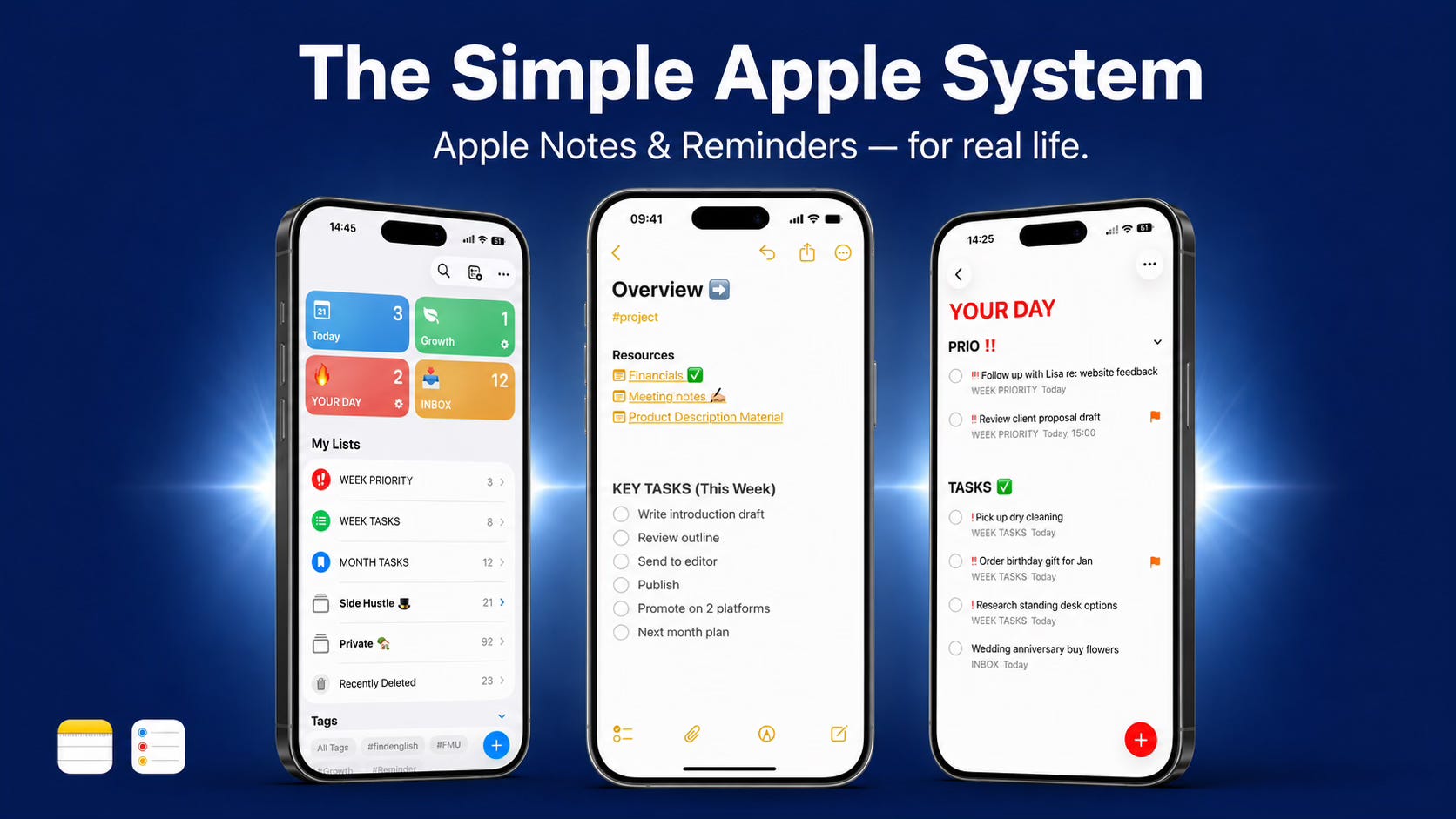
This setup is one piece of a larger system. If you want the full picture — how these lists connect to a weekly review, how Apple Notes links to your tasks, and how Siri fits into daily capture, I put it all in one place.
Final thoughts
Apple’s built-in Today view isn’t broken, but it doesn’t give you clarity — this setup does. I like Reminders because it’s a simple app, yet its features let me build a custom setup that actually works for me.
Thanks for reading!
— Robin
P.S. If this was useful, the newsletter is where I share the deeper stuff every Monday.
Footnote: All screenshots made on my iPhone 16 Pro and iPad Air, edited with Shareshot app. Text written fully by author (human), edited with Grammarly to correct any spelling or grammar mistakes.