
How I Use Apple Reminders Column View to Plan My Week
A simple Apple Reminders system using column view.

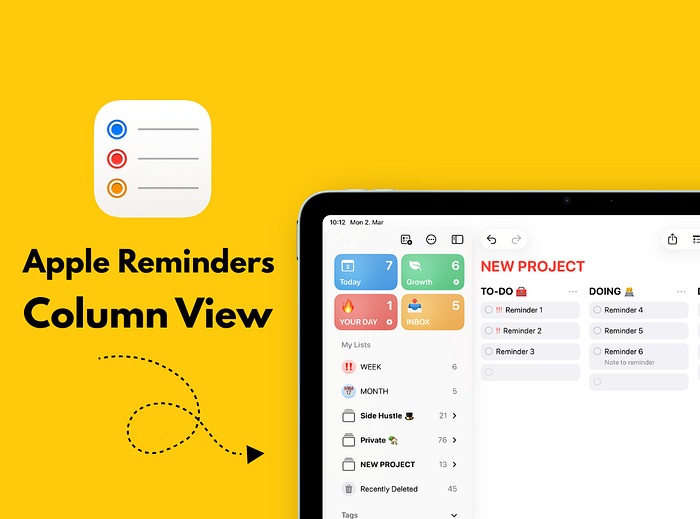
Apple Reminders can be a powerful productivity tool.
But most people only use it for groceries and simple notifications.
This free, native Apple app is much more than a checklist. It can become a full task manager for your daily life, projects, and routines.
I organize almost everything with Apple’s built-in apps. I manage personal tasks, side hustle projects, and recurring routines inside one Apple system.
And Apple Reminders sits at the center of it.
It includes reminders, notifications, lists, tags, shared lists, and smart organization. And if you already use Apple devices, it’s completely free.
In this article, I’ll show you one feature most people ignore: Column View. I’ll also share three simple ways I use it in my Apple productivity setup.
Why Most People Miss This Feature
Apple Reminders has grown a lot over the years. But many users still treat it like a basic checklist.
Column View changes how you see your tasks.
Instead of one long vertical list, you can organize reminders into visual sections — similar to a lightweight project board.
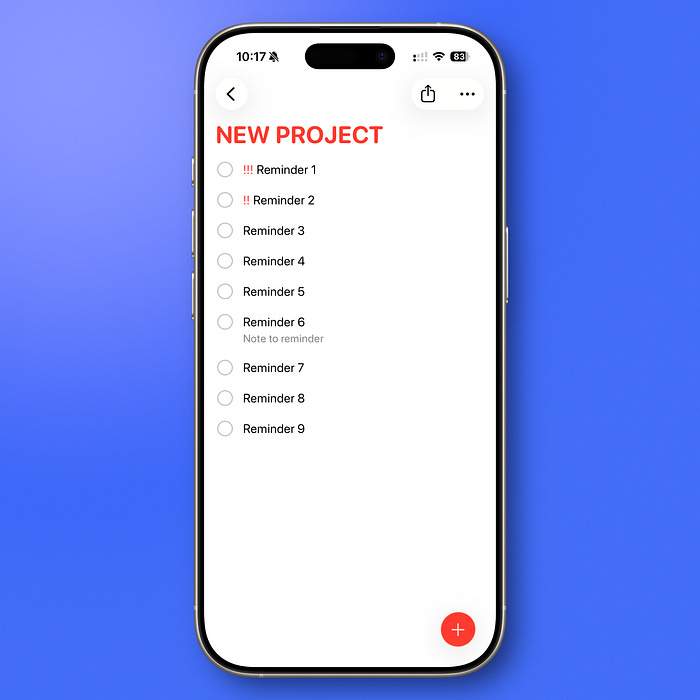
Simple list view in Apple Reminders.
This works because you can drag tasks between sections. That simple action makes planning clearer and more intentional.
It’s not complicated. But it changes how you think about your work.
How to Turn On Column View in Apple Reminders
First, choose the list where you want to use Column View.
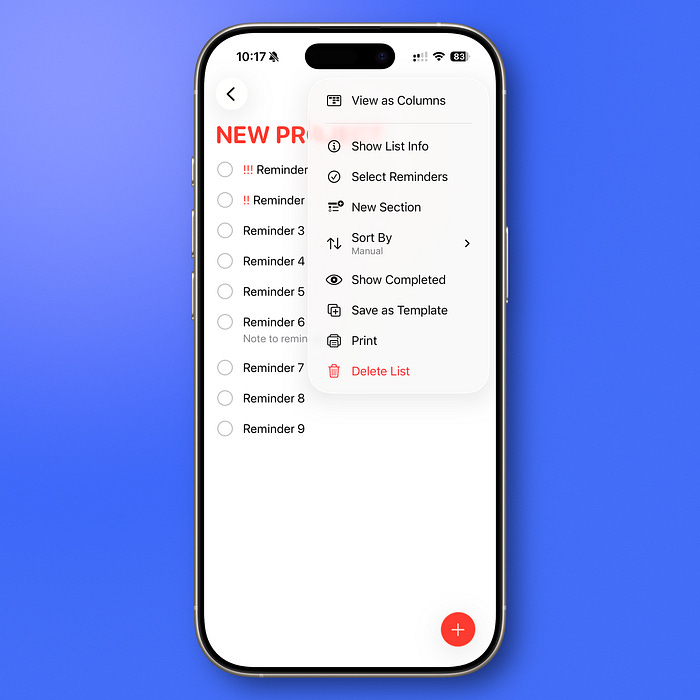
Step 1: Create Sections
On iPhone:
Tap the three dots in the top right corner
Tap New Section
Create as many sections as you need
On macOS or iPad:
Open your list
Click Add Section in the upper right corner
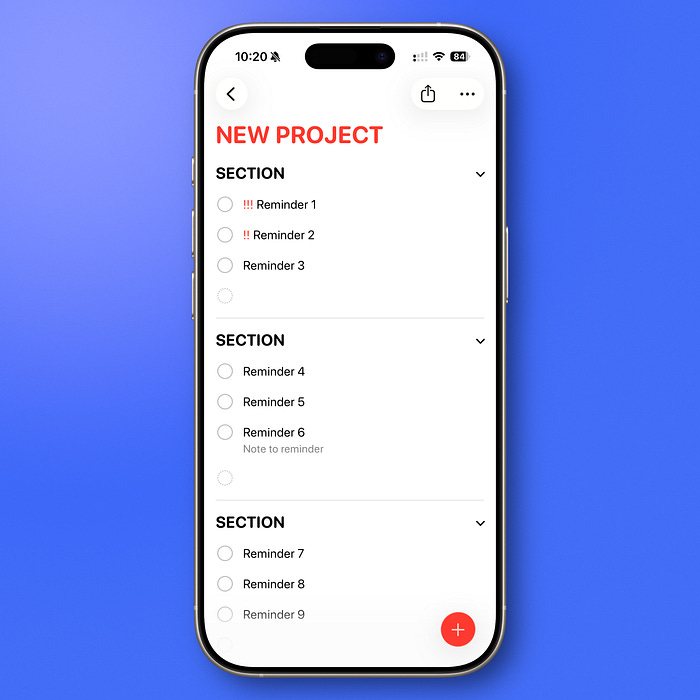
Sections are required. Column View works best with them.
Step 2: Switch to Column View
On iPhone or iPad:
Tap the three dots again
Select View as Columns
On macOS:
Click View in the menu bar
Select as Columns
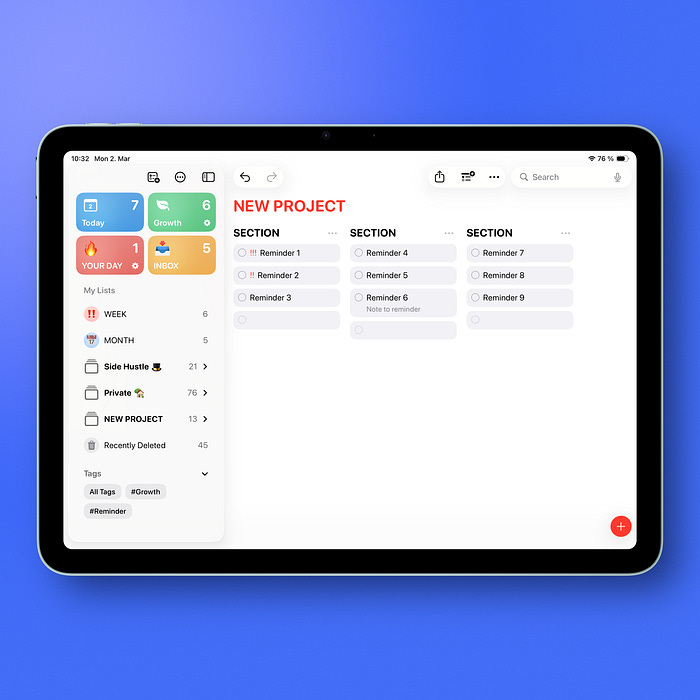
Use iPad or Mac for better experience with Column View.
Now your sections appear side by side.
For a clearer and more comfortable view, I prefer using Columns on iPad or Mac, where the larger screen makes it easier.
You can drag reminders between columns. This is where the system becomes useful.
Now, here are the three best ways how you can use it.
1. The Time-Based List
This is one of my main lists. I call it Weekly Plan.
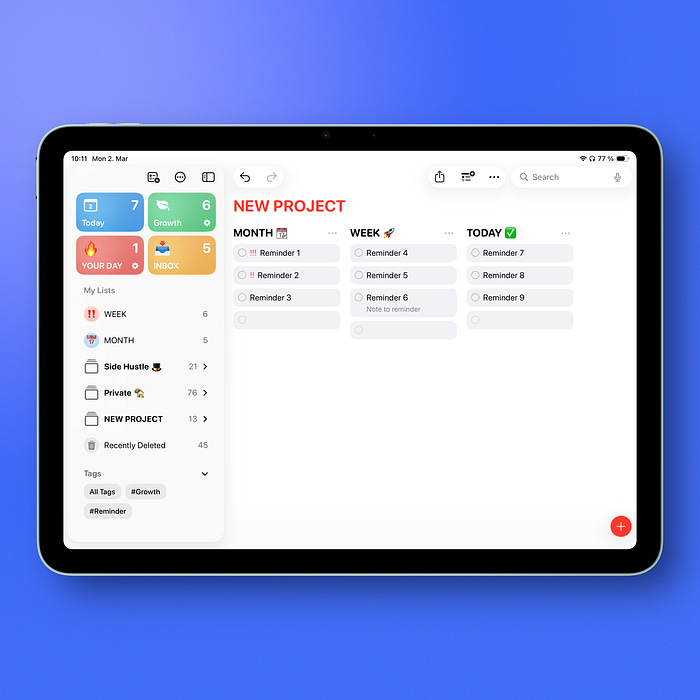
It helps me decide what matters this month, this week, and today.
I create three sections:
Month
Week
Today
How I Use It
Once a month, I sit down and decide what I want to focus on. I move those tasks into the Month column.
Every Sunday, I review that column and move selected tasks into Week.
Each morning, I move two or three tasks into Today.
It breaks when you overload the Month column. If everything is important, nothing moves forward.
2. The Action-Based List
When I work on larger projects — especially for my side hustle — I use a simple action-based structure.
It has three sections:
To Do
Doing
Done
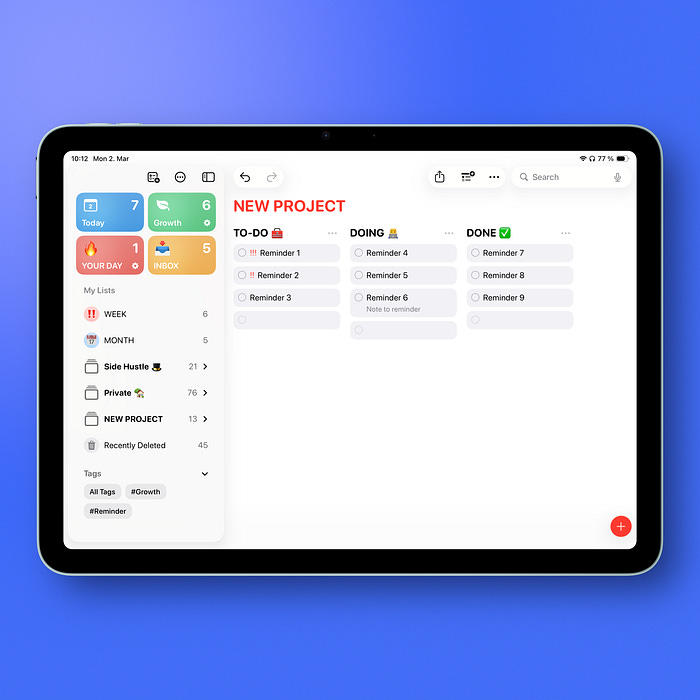
This view is perfect for collaboration. And yes, this is basically a Kanban board.
But inside Apple Reminders, it feels lighter and easier than using a separate project management tool.
This setup also works well when you collaborate on a project. You can share the list with other Apple users, and everyone can move tasks between columns in real time.
One Small Difference
I don’t mark tasks as completed immediately.
Instead of tapping the empty circle, I drag the reminder to the Done column.
This lets me see visual progress.
At the end of the project, I review the Done column. Then I complete everything at once.
This works because progress stays visible.
3. The Category-Based List
This method works well for business planning or family organization.
For my side hustle, I use sections like:
Newsletter
Products
Content
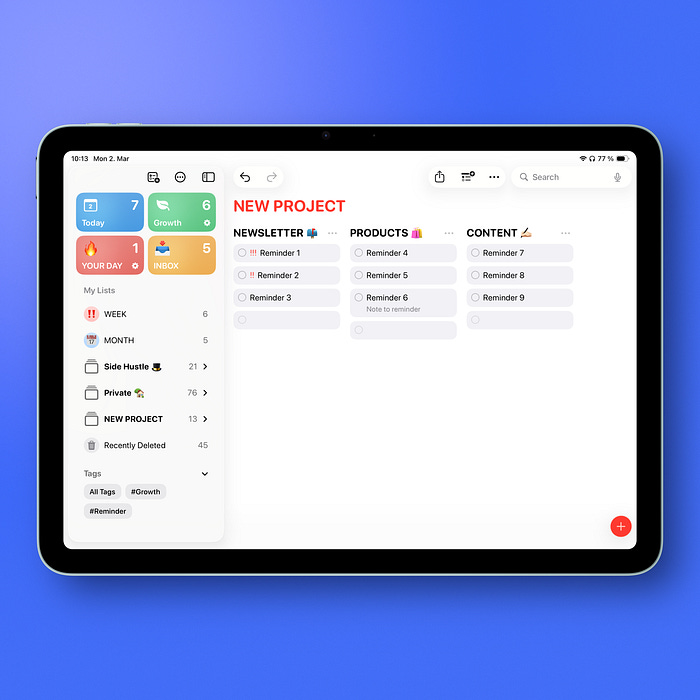
These columns store ideas, plans, and future tasks.
But here is the important rule:
This is not where execution happens.
When I’m ready to work on something, I move it to another list — either my To Do board or my Month column in the Weekly Plan.
This separation works because storage and execution are different activities.
When you mix them, your task manager becomes overwhelming.
TL;DR
If you want to try Column View in Apple Reminders, start here:
Pick one list
Create 3 simple sections
Turn on View as Columns
Drag tasks instead of only checking them off
Review weekly and adjust
Keep it simple at first. You don’t need five lists and twenty tags.
Start with one structure that supports how you think.
Final Thoughts
Apple Reminders is my daily activity manager.
Without it, I would feel scattered. Inside this one app, I track weekly priorities, business tasks, and personal commitments.
Column View made it visual. And that made it easier to focus.
btw. I write weekly about Apple systems like this in my newsletter.
Thanks for reading.
Robin