
How I Actually Use Apple Reminders (My Full Setup)
One app. Everything in its right place.

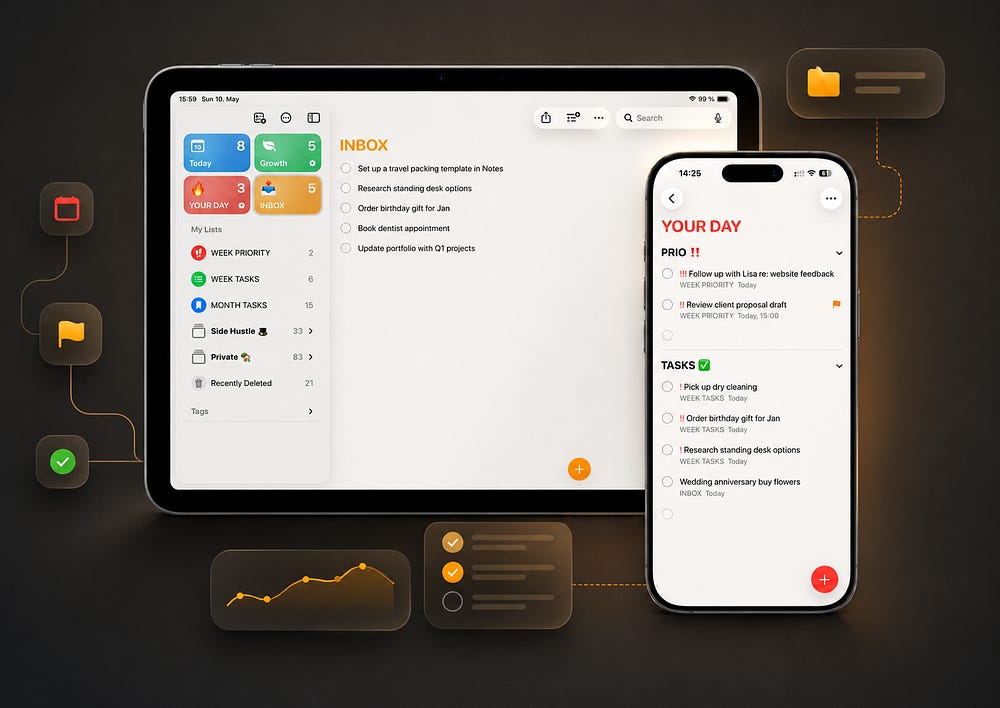
Every morning I open Apple Reminders before anything else.
Not to check email. Not to scroll. Just to see what’s ahead.
It takes about two minutes. I look at my lists, reprioritize if needed, pick the one thing that matters most today, and close the app.
That’s it. Then I start working.
I’ve been doing this for a while now. And over time, Reminders became much more than a task list. It became the operating system for my day — and my side hustle.
Here’s exactly how my setup works.
The Problem With Most Reminders Setups
Most people open Reminders and dump everything in one place.
Tasks, ideas, groceries, appointments, random thoughts. All in one list.
That works for about a week. Then it becomes a wall of noise. You stop trusting the app. You stop opening it. You go back to whatever you were doing before.
The fix isn’t a new app. It’s a clear structure.
Once you know what belongs where, the app starts working for you instead of against you.
How My Apple Reminders Is Organized
My whole setup is built on three layers: an Inbox, Folders, and Time-Based Lists.
The Inbox
Everything new goes here. Tasks, ideas, random thoughts, links I want to save.
I don’t sort when I capture. I just add and move on.
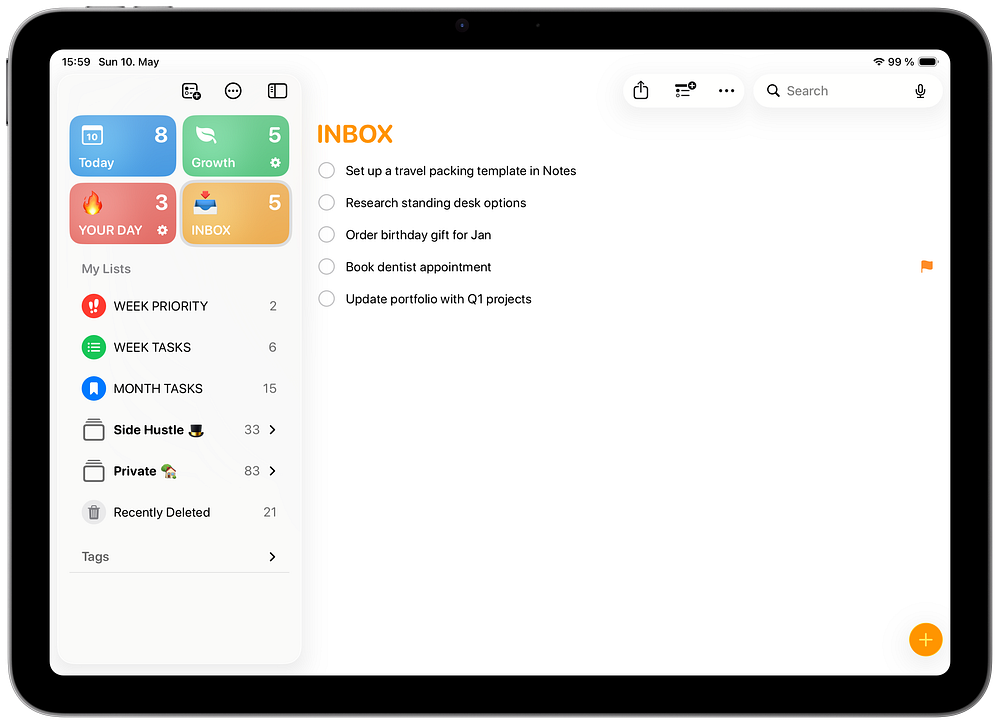
Once a week — usually Friday — I go through the Inbox. Ten minutes. I decide where each item belongs and move it. The goal is simple: empty Inbox by the end of the review.
The full inbox feels like mental clutter. Even when you’re not looking at it, you feel it.
Folders
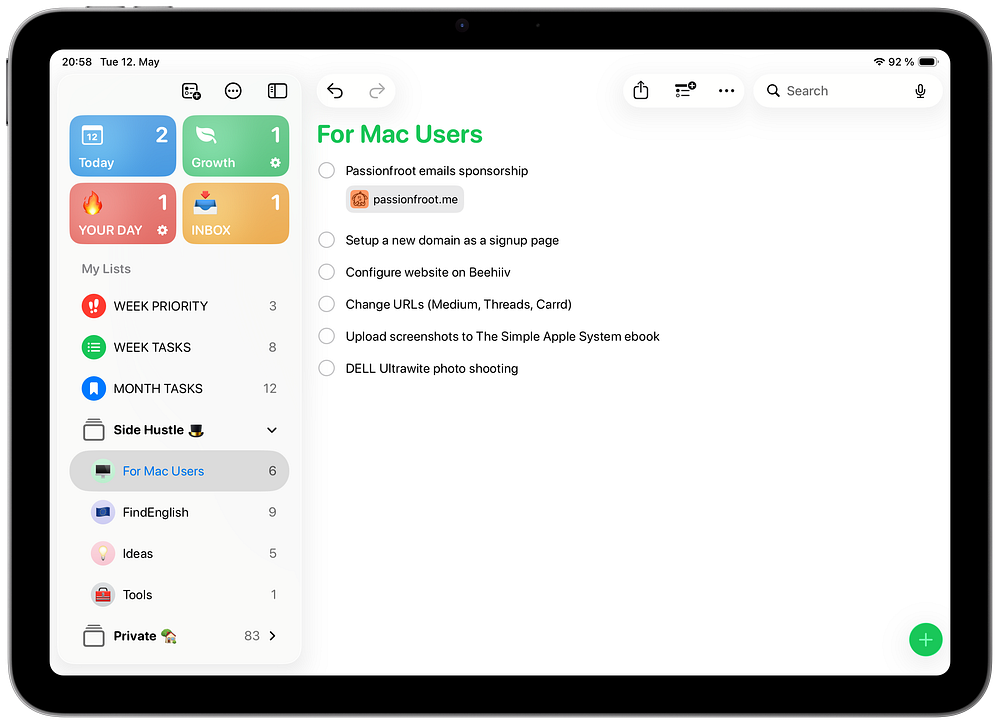
I use two main folders: Private and Side Hustle.
Private holds everything personal: health, errands, groceries, family stuff.
Side Hustle is where my work lives. It has its own sub-lists for each area of my business:
2 lists for each project (For Mac Users, FindEnglish)
Ideas (things worth exploring later)
Tools (any new tool or app I want to check out)
I like this structure of my folders. I organized them by category so I can quickly find what I need.
I review these once a month. I pick one or two things to focus on and move them into my active lists. Everything else stays there until I’m ready.
Time-Based Lists
Together with two category-based folders, I keep three lists organized by time frame:
MONTH TASKS — what I’m focusing on this month
WEEK TASKS — what I want to get done this week
WEEK PRIORITY — I choose one to three things that matter most right now
And this is basically my regular workflow: Categories -> Month -> Week.
Every month I sit down and choose what I want to work on in the upcoming month.
Then every Sunday (sometimes Fridays too) I plan my week ahead. I just move tasks from Month List to the Week List.
Finally, from my Weekly plans I select maximum three topics that are my top priority.
Why I plan by week instead of by day:
Daily planning breaks down fast. One meeting runs long, one thing goes wrong, and your whole “plan” feels like a failure by noon. Weekly planning gives you room to move things around without the whole system collapsing.
I like this separation between weekly priorities and all other tasks. It helps me to focus on what matters the most. Week priority is my absolutely minimum I want to do within the 7 days.

If you like it, I share more stuff about Apple native apps and ecosystem in my short weekly newsletter here. It’s free and quick to read.
My Daily Focus Lists
For execution, I keep it simpler: just two (Smart) Lists. Each one solves a specific problem. I keep four pinned lists at the top of Apple Reminders:
Today (default, shows everything)
Growth (my routines)
Your Day (tasks minus routines)
and Inbox.
If you add too many reminders, your default Today view can get noisy very fast. That is why you should separate routines from all other tasks.
To do that, create two Smart Lists in Apple Reminders:
Your Day: Date → Today (Include Past Due) + Exclude your Routines list. Shows all tasks for today except recurring ones. Clean view and no noise from daily habits.
Growth: Date → Today (Include Past Due) + Include your Routines list. Only habits and recurring tasks. Your morning checklist, completely separated from everything else.
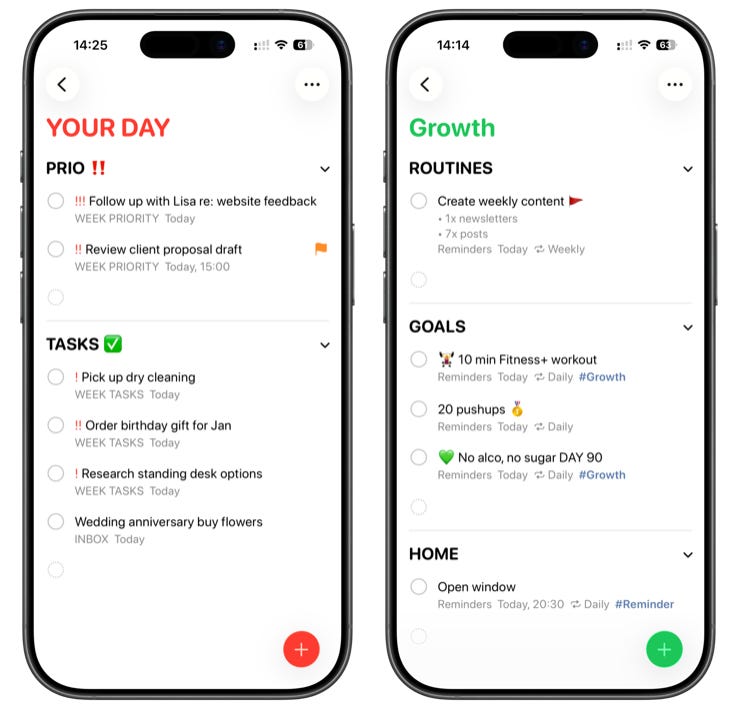
You can take your Smart Lists a step further by adding sections inside them — giving you a structured, at-a-glance view of everything due today organized the way you like it.
In my setup I keep the same logic from Week Tasks / Week Priority Lists — in Your Day view I grouped tasks by priority using sections. The “Growth” list separates Routines, Goals and Home.
Here is how to create sections by the way:
On iPhone/iPad: open a list → three dots in the top right → New Section
On Mac: open a list → Add a new section in the top right corner
This is one of the reasons Apple Reminders is more flexible than most people give it credit for.
Three Things I Use Reminders For
1. My Reading List
I read a lot online. Articles, newsletters, random pages I find while researching.
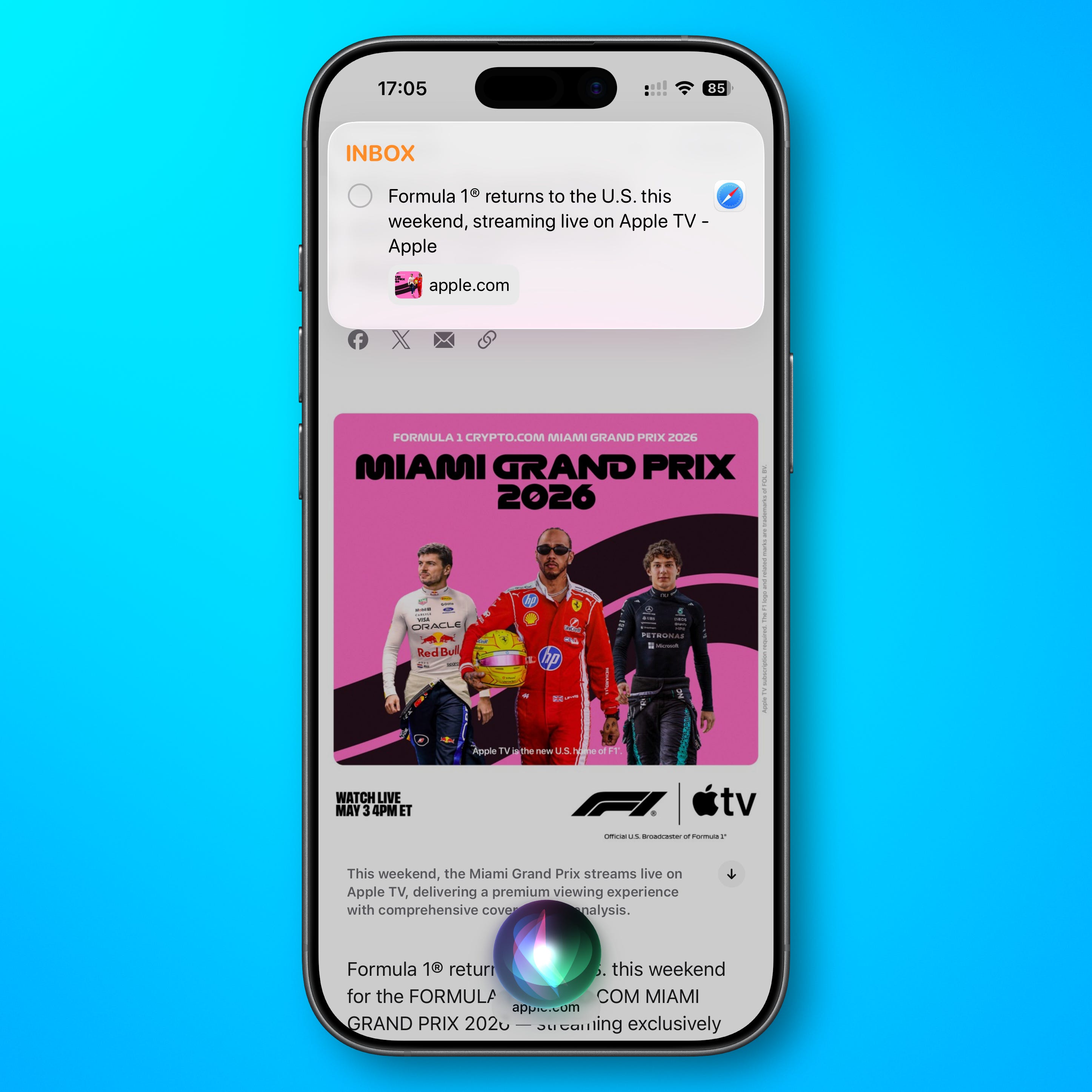
I don’t like Safari’s built-in Reading List. Instead, when I find something worth reading later, I tap Share ->Reminders in Safari. It lands in my Inbox with the link attached.
2. My Bookmark Manager
Besides articles, I save ideas. Tools I want to try, newsletter hacks or content topics I might come back to.
At the end I move them to my lists inside Folders.
You can save links in Reminders even faster with Siri. While browsing just say: “Remind me about this”. Siri creates a reminder with a direct link to the current content.
3. Linked to Apple Notes for Context
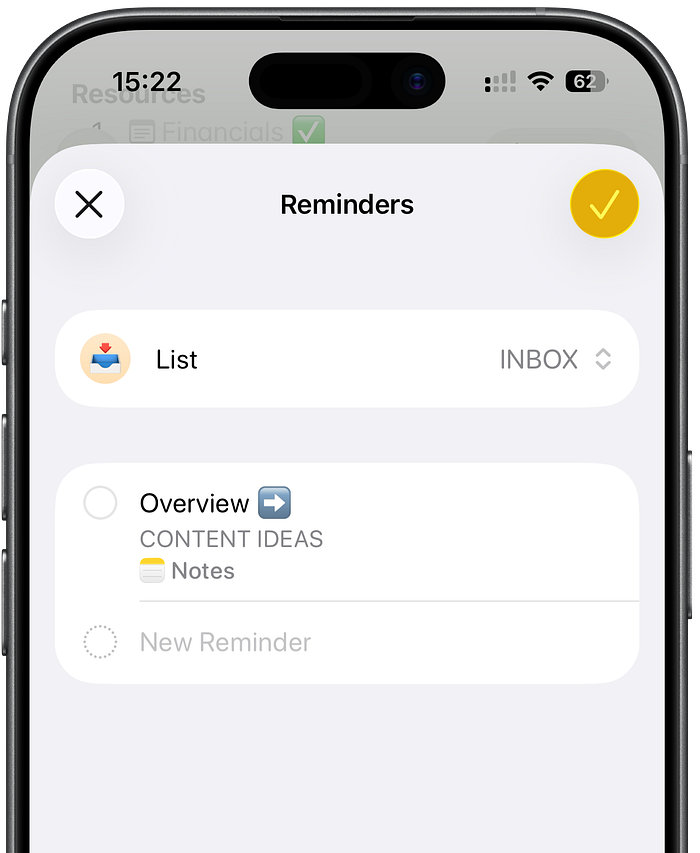
This is the best feature of the whole system, and the one most people never discover. I link tasks in Reminders directly to the relevant note in Apple Notes.
My reminder might be as simple as “Work on this project for 1 hour.” I open it, set a timer, and focus. The full context — goals, research, references, draft content — is in Notes.
That’s why I link reminders related to projects directly to Apple Notes.
To do it: highlight the note title in Notes → tap Share → choose Reminders. The reminder you create will contain a direct link back to that note.
Quick Setup Checklist
If you want to try this:
Use Inbox as your entry list (set it as default so Siri adds tasks here too)
Create two folders: one for personal life, one for work or side hustle
Inside your lists create category-based Lists
Add time-based lists for month and week
Create Smart Lists for the daily tasks (grouped by priority) and routines.
That’s the whole system. It might sounds like a lot, but once you set it up, it runs automatically. You stop thinking about the structure and start actually using it.
Why Reminders, Not Notion or Todoist?
Simple answer: it’s already there. It works across my iPhone, iPad, Mac, and Apple Watch. Synced instantly via iCloud and no extra subscription needed.
I’ve tried Todoist. I liked it. But every time I switched devices, I noticed the friction of an extra app. Reminders has no friction. It’s part of how the Apple ecosystem works.
The app also got significantly better over the last few iOS updates. Tags, Smart Lists, Column View, sections inside lists. It’s not a basic checklist anymore.
For most Apple users, it’s already enough. They just haven’t set it to make it actually useful.
Thanks for reading, Robin | For Mac Users
I love it how you inspire me to enhance my Todoist experience! ;-)