
Siri + Apple Reminders (It Works Better Than You Think)
How I use Siri with Apple Reminders everyday.

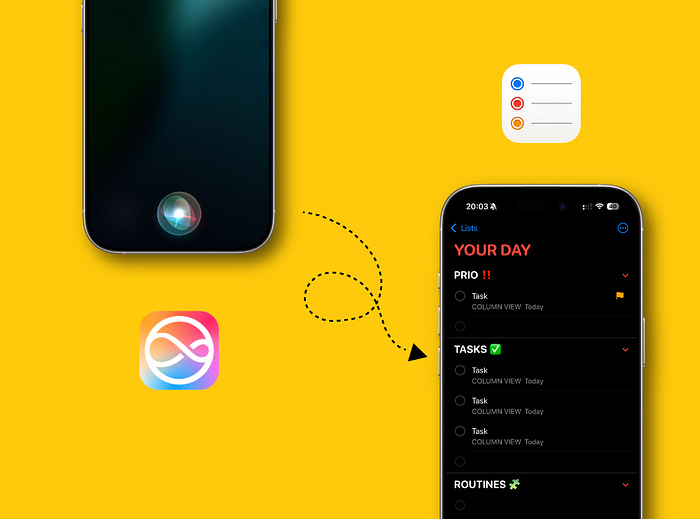
Most people complain about Siri.
Compared to Google Assistant or Amazon Alexa, Siri often struggles with follow-up questions. It can lose context in longer conversations, sometimes it asks unnecessary clarification questions.
And even with HomeKit, you may end up hearing: “Sorry, something went wrong.”
In the current AI era, Siri can feel behind.
But here’s the part most people miss: Siri is extremely useful when paired with Apple’s built-in apps like Reminders, Notes, messages or Calendar.
I use Apple Reminders as my second brain. Everything lands there first — tasks, ideas, schedules, random thoughts — and only later I organize it.
And in situations where typing isn’t practical (driving, walking, cooking), Siri becomes surprisingly reliable.
This isn’t about long AI conversations. It’s about fast capture.
Here’s exactly how I use Siri with my Apple Reminders system.
Why Siri Works Better With Reminders
Siri struggles with context-heavy dialogue. But reminders are structured.
Reminder (task) usually contains:
task/action
list
date or time (optional)
location (optional)
That’s predictable. And Siri handles predictable input well.
Instead of asking Siri complex questions, I give it short, structured commands.
1. Task + List
Most people use long commands like: “Hey Siri, add olive oil to my groceries list.”
That works. But it’s not necessary.
If you already have structured lists inside Apple Reminders, for example:
Personal
Work
Groceries
Ideas
You can shorten your commands dramatically. I just say:
“Olive oil in Groceries.”
“Prepare invoice in Work.”
“Medium analytics in Personal.”
No “add to my reminders list” and no extra phrasing.
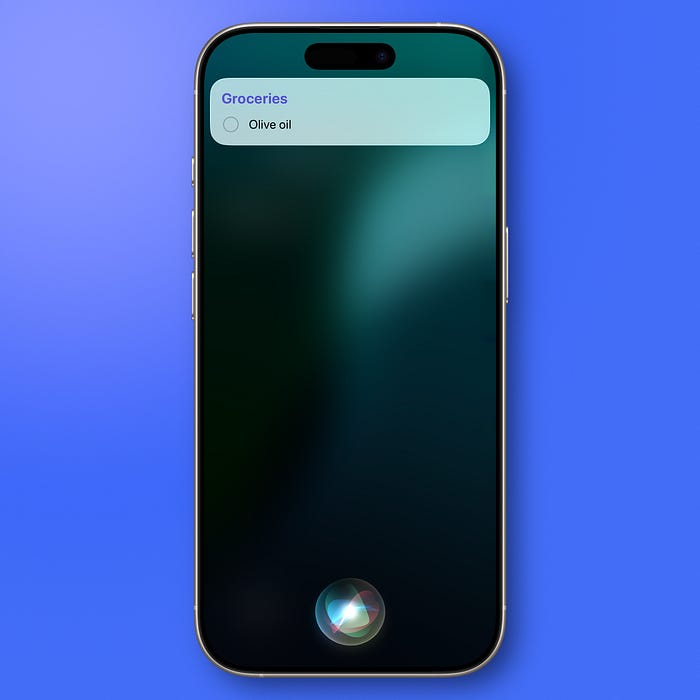
This works because Siri maps the task to an existing list name. The cleaner your list structure, the more reliable this becomes.
If you want Siri to work well, structure your lists first.
2. Task + Location
Location-based reminders are one of the most underrated Apple productivity features. You can combine:
The task
The location trigger
The list (if you include it)
In one sentence:
“Remind me to call Mark when I get to the office.”
“Remind me to ask about warranty when I arrive at Aldi.”
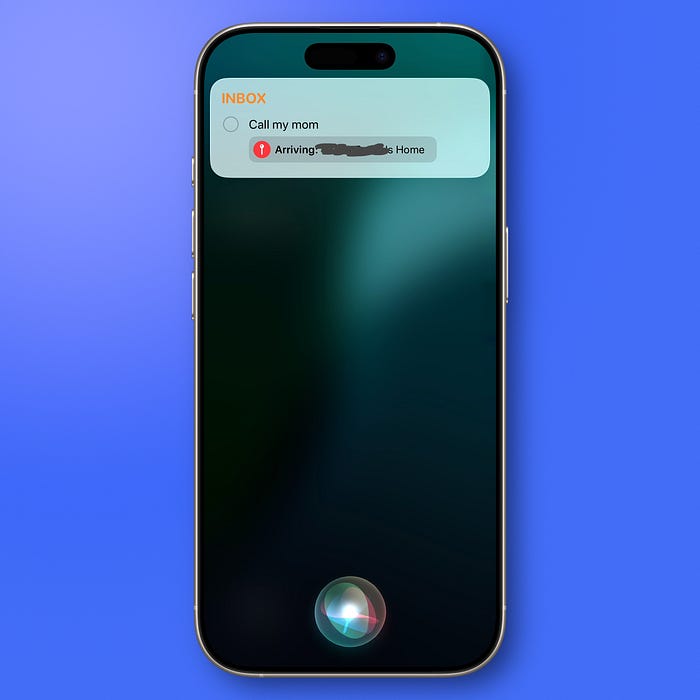
This removes mental load. You don’t have to remember later — your device remembers when you’re physically in the right place.
3. Relative Planning
Instead of thinking in calendar terms, I say when I want the action to happen:
“Remind me to review finances in 30 days.”
“Remind me to check website stats next Monday at 9 AM.”
Siri handles relative time very well.
This is faster than:
Creating the reminder manually
Opening the calendar view
Scrolling
Selecting a date
4. Recurring Reminders
Recurring tasks are simple with Siri. Just use:
[Task] + every [day/time]
For example:
“Remind me to take out the trash every Monday at 7 PM.”
“Remind me to review goals every first day of the month.”
This is how I manage small routines without using a separate habit-tracking app. I just keep them all in separate list.
Apple Reminders handles recurring logic natively. Siri just becomes the input layer.
5. Contextual Capture
This is my favorite feature. When I’m reading a website or viewing an email, I just say:
“Remind me about this.”
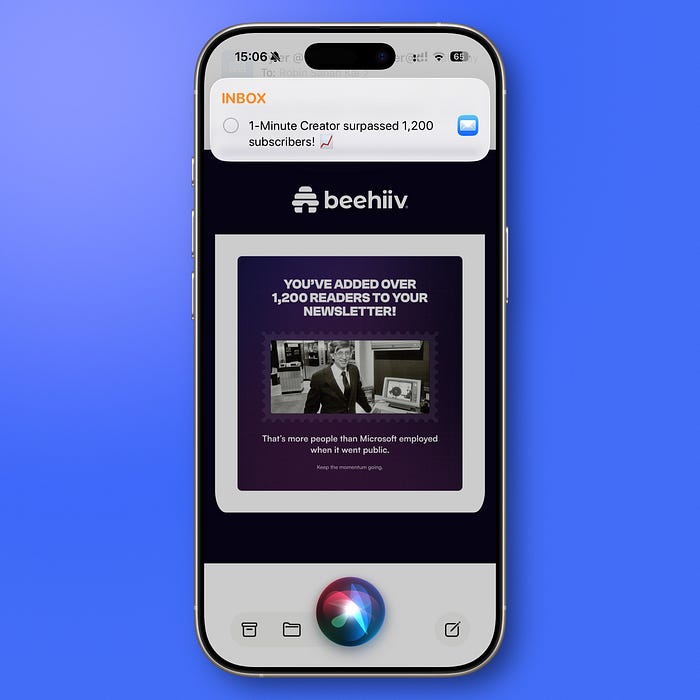
Siri creates a reminder with a direct link to the current content.
Later, when I open the reminder, I can jump straight back to the source.
This is one of the cleanest ways to connect browsing, email, and task management, without copying links manually.
It works well because Apple integrates its apps at the system level.
6. Reviewing Your Reminders With Siri
Siri isn’t only for adding tasks. You can also say:
“Show me my reminders.”
“What are my reminders for today?”
“What’s on my Work list?”
Again, keep it short and structured.
This works because:
Reminders already has structure
Your lists are predefined
Time and location triggers are built-in
Siri only needs to map voice to fields
The intelligence isn’t in the conversation. It’s in the system.
And once your Apple Reminders system is clean, Siri becomes frictionless.
Bottom Line
If you expect Siri to replace a conversational AI assistant, you’ll probably be disappointed.
But, if you treat Siri as a fast input layer for Apple Reminders, it becomes powerful.
To try this, start here:
Create clear lists (Work, Personal, Groceries, Ideas)
Keep list names simple and distinct
Use short commands: “Task + List”
Use relative dates instead of manual picking
Use location triggers
Use “Remind me about this” while browsing
Don’t try to talk to Siri. Give it structured instructions.
P.S. if you like Apple workflows, you can find weekly tips in my quick newsletter.
Thanks, Robin.
Thanks for shring!